
Connecting your services
Connect the AI services and accounts you already use, from Higgsfield and Gemini to Meta, so BosOn can make, post and read results through them.
BosOn works through the accounts you already pay for. Connect them in Connections: the plug button at the top right of the library, or Connections in the menu under your workspace's name. Each connection is kept encrypted on your PC, never in your library folder or anywhere else.
The services you can connect
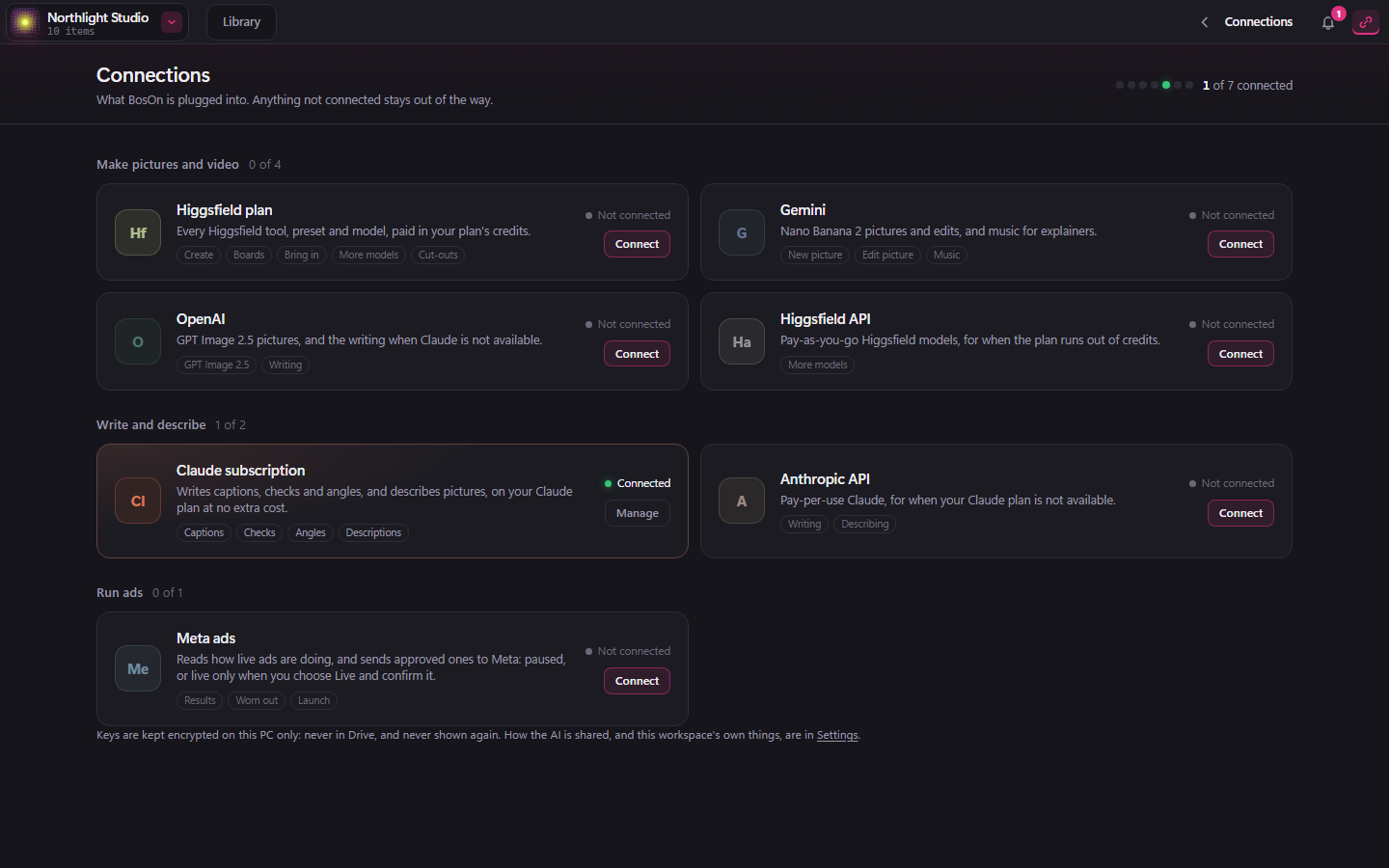
| Service | How it connects | What it's for |
|---|---|---|
| Higgsfield plan | Sign in with Higgsfield | Higgsfield's models and presets, paid from your plan's credits |
| Higgsfield API | An API key | Pay-as-you-go Higgsfield models, for when the plan runs out of credits |
| Gemini | An API key | Nano Banana 2 pictures and edits, and music for explainers |
| OpenAI | An API key | GPT Image pictures, and writing when Claude isn't available |
| Claude subscription | Connect | Captions, checks, angles and descriptions, on your Claude plan |
| Anthropic API | An API key | Pay-per-use Claude, for when your Claude plan isn't available |
| Meta ads | Sign in with Meta | Your ads' results, launching ads, and posting to Facebook and Instagram |
Connect only the ones you use. Anything that needs a service you haven't connected says so and points you to Connections.
Sign in with Meta
Start the sign-in
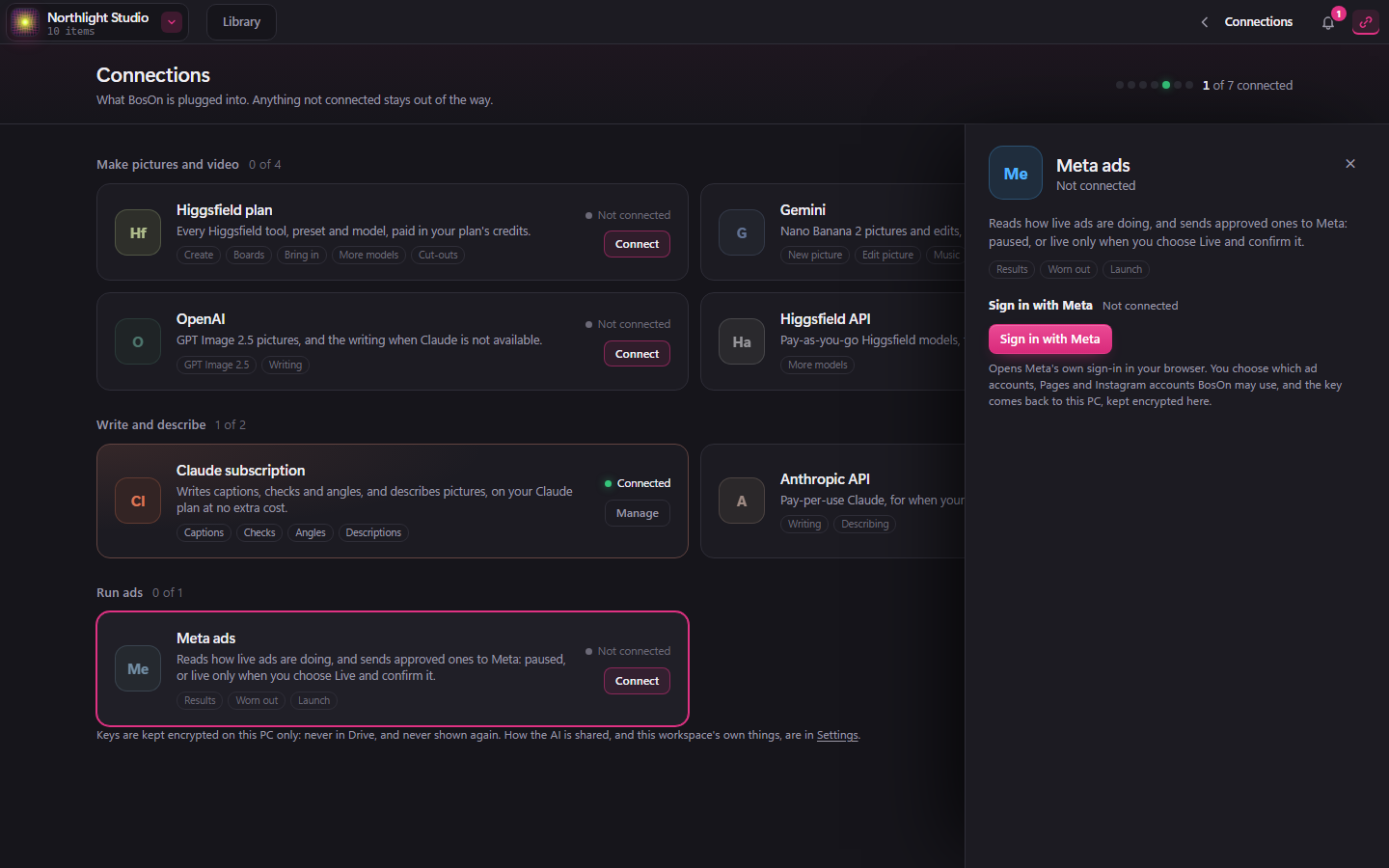
In Connections, open Meta ads and click Sign in with Meta.
Choose your accounts
Meta's own sign-in page opens in your browser. Choose the ad accounts, Pages and Instagram accounts BosOn may use, and confirm.
Back in BosOn
The browser says you're connected. BosOn picks the connection up by itself and asks which ad account, Page and Instagram account to use.
Meta lets BosOn reach your accounts for 90 days from each time you sign in, and signing in again starts the 90 days afresh. If a scheduled post would go out after that, the post box tells you the date the connection ends and offers Reconnect, so you can renew it in one click.
To disconnect, open Meta ads in Connections and click Disconnect. To remove BosOn from your Facebook account as well, go to Facebook Settings and privacy, Settings, Business integrations.