

Adding your work
Bring the pictures and videos you've already made into BosOn: copy them into your library, or link a folder and leave it where it is.
You can bring in work you've already made in two ways: copy it into your library, or link a folder and leave it where it is.
Copy files or a folder in
Drop files or a whole folder onto the BosOn window. Or click your workspace's name at the top left, then File, then Add files… (Ctrl+O) or Add a folder….
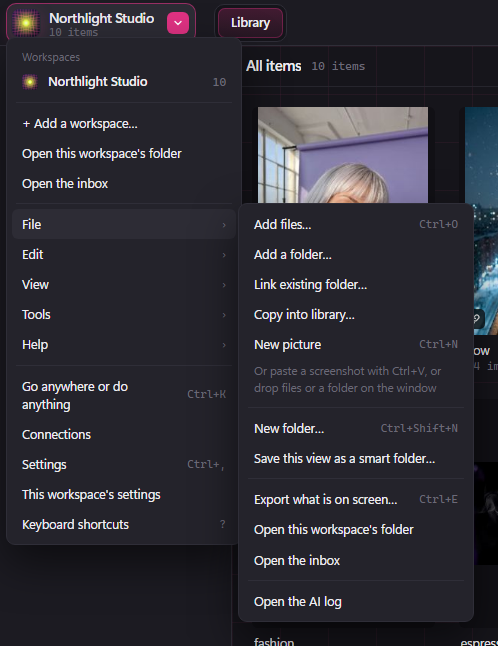
- A folder is copied into your library with its subfolders kept as they are.
- Your originals are left exactly where they were. BosOn never moves or changes them.
- A very big folder, over 1 GB or 500 files, asks you to confirm before it copies.
You can also paste a screenshot straight in with Ctrl+V.
Link a folder and leave it where it is
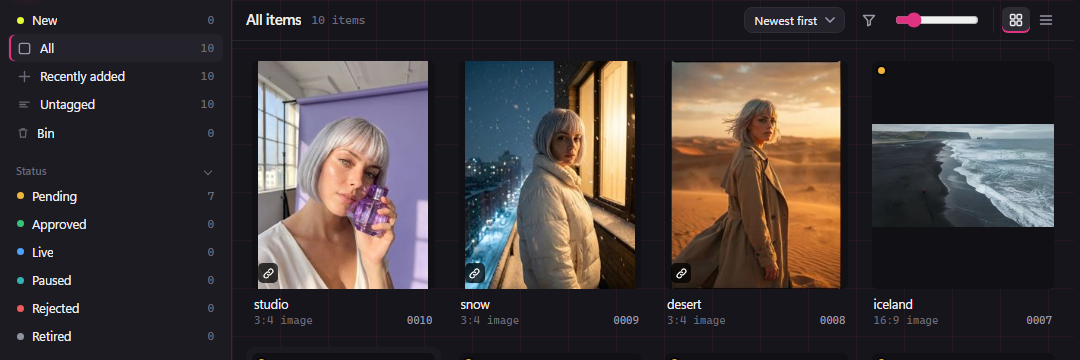
To keep a folder where it is, for example a client's folder on a shared drive, use Link existing folder…. Its pictures and videos show in your library without being copied. Linked items show a small chain mark, and the folder appears under Folders on the left.
Copy linked items in later
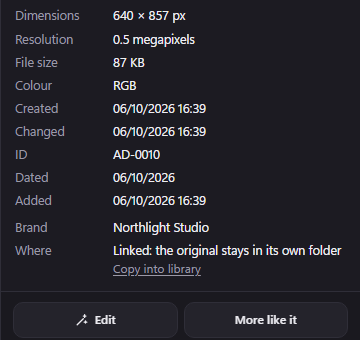
If you decide you'd rather keep a linked item in your library after all, use Copy into library…. It appears in File when linked items are selected or on screen. Or open the item, choose Info, and click Copy into library under Where. BosOn copies it in and keeps everything you've added to it: its tags, its status and its results.
Libraries on a cloud drive
You can keep your library in a cloud drive folder, such as Google Drive or OneDrive. Use it on one computer at a time: two PCs changing the same library at once can make the cloud drive create conflict copies of BosOn's records. If that happens, BosOn warns you. Settings, Backups has more about this.