

Keeping your library on Google Drive, OneDrive or Dropbox
Why a cloud drive is a good home for your BosOn library, the one rule that keeps it safe, and what BosOn does if two computers clash.
Your BosOn library is a folder. If that folder is inside Google Drive, OneDrive or Dropbox, your cloud drive looks after it like any other folder.
Why it's worth it
- It's backed up. If your computer breaks or goes missing, your library is still safe in your cloud drive.
- You can reach it from another PC. The same library, with your folders, statuses and boards, on whichever computer you're using.
Opening your library on a second PC
- Close BosOn on your first PC, and let your cloud drive finish syncing (see below for how to tell).
- Install BosOn on the second PC.
- On the welcome, the library step offers a folder. Click Change… and choose your library's folder in the cloud drive: the folder that holds BosOn's
_systemfolder, for exampleMy Drive\BosOn. - BosOn spots the library and says Your library is already here. Click Open it.
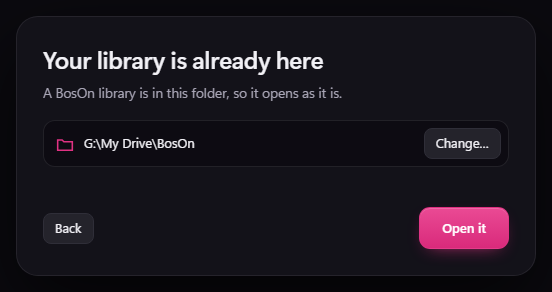
Everything in the library comes with it: your pictures and videos, folders, statuses, tags, boards and scheduled posts. It doesn't matter if the cloud drive has a different drive letter on this PC.
A few things don't come across, because they belong to each PC:
- Your connections. Keys are kept encrypted on each PC, never in the library, so connect Higgsfield, Claude, OpenAI, Gemini and Meta again on the second PC. See Connecting your services.
- Client workspaces you added with Add a workspace… are remembered by where their folder is. If your cloud drive is somewhere else on the second PC (for example G: instead of H:), add them again: click your workspace's name at the top left, then Add a workspace….
- Coming with the next version: when you sign in to BosOn, the second PC counts as one of your account's two computers.
The one rule: one computer at a time
BosOn keeps its own records inside the library: what's in each folder, statuses, tags, boards and scheduled posts. If BosOn has the same library open on two computers at once, both write to those records, and your cloud drive can't join the two together.
So when you move from one computer to another:
- Close BosOn on the first computer.
- Let your cloud drive finish syncing.
- Then open BosOn on the other computer.
How to tell it has finished syncing
Look for your cloud drive's icon by the clock, at the bottom right of the screen. If it isn't there, click the small arrow beside the clock to show the hidden icons. When the icon shows a tick, or says it's up to date, everything has been sent. If you're not sure, click the icon: it tells you whether anything is still syncing.
If the two computers clash
If the library was open on two computers at once, your cloud drive may keep both versions of a record by making a "conflict copy", with a name like register (1).json. BosOn looks for these when it opens. If it finds any, the bell at the top of BosOn says Your cloud drive made conflict copies of BosOn's records.
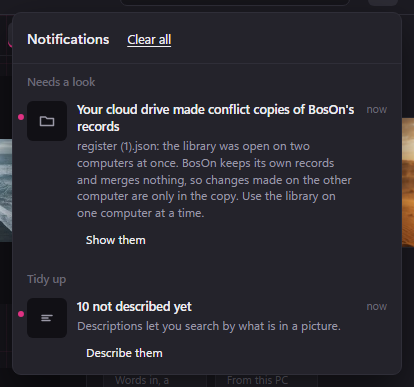
BosOn carries on with its own records and merges nothing. So anything you changed on the other computer while both were open is only in the copy, not in your library. Show them opens the folder the copies are in. If you need something back from a copy, email hello@getboson.app and we'll help.
BosOn's daily backups
Every day, BosOn saves a copy of how your library is set up: your folders, statuses, tags, boards and scheduled posts. It keeps the last 30 days.
To go back to an earlier day, open Settings (or press Ctrl+,), then Backups. Pick the day and click Go back to this day. What it replaces is saved first, so you can change your mind. Anything already posted to Facebook or Instagram stays as it was sent.
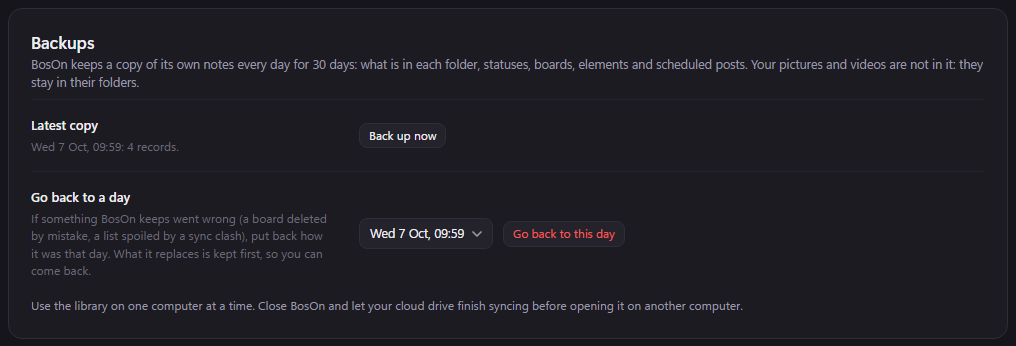
Your pictures and videos aren't in these copies: they stay where they are, in your folders. To get back an older version of a picture or video, or one you deleted, use your cloud drive's own version history or bin.