
Posting to YouTube
A thumbnail with each video, the call to action every description ends with, and changing who can see a video after it's posted.
First connect YouTube: in Settings, Connections, click Connect on YouTube, under Post videos, and sign in with Google. TikTok is coming soon.

Then select a video in your library and click Post (the paper plane) over its picture in the side panel. Under Where, tick YouTube.
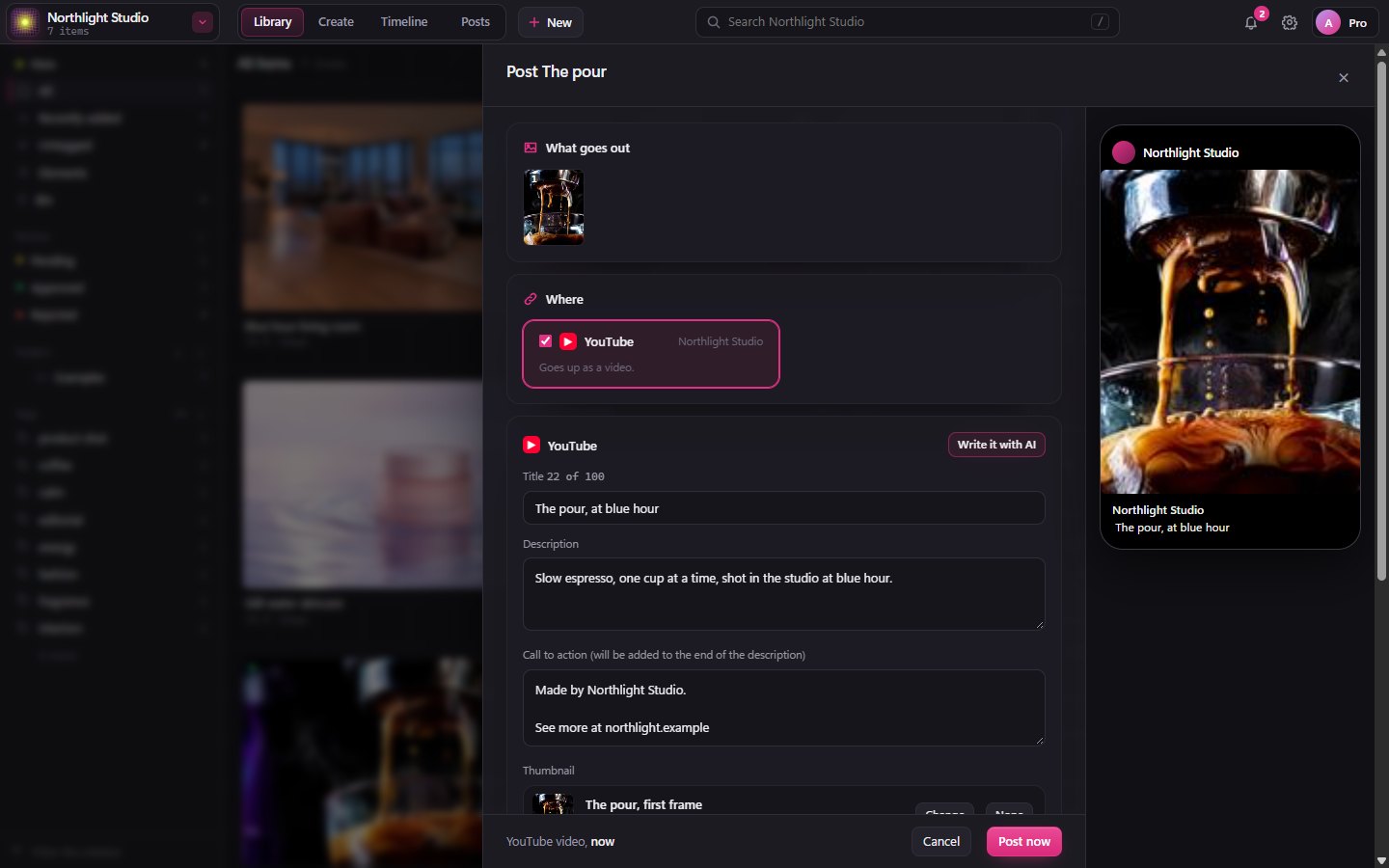
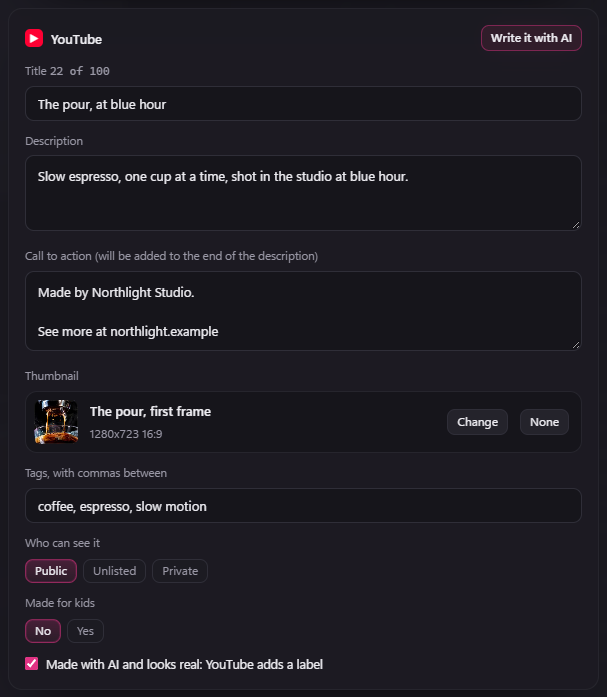
The YouTube box asks for the title, description, thumbnail, tags and who can see it. Write it with AI writes the title, description and tags for you; change anything you like.
Watch it go up
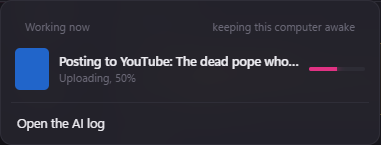
When you press Post now, the window closes and the post shows at the top right, under 1 working, while it uploads: Posting to YouTube, with how far it has got. When it's done, BosOn says so, and the row says who can see the video. Click the row to open the video's Results in the side panel. It's in Results, in the top bar, too.
A thumbnail with the video
Thumbnail shows the picture YouTube will use for the video:
- If the video has a picture in its set, such as the thumbnail Micro Studio files beside its video, it starts on that one.
- Change lets you choose any picture in your library.
- None leaves the thumbnail to YouTube, which picks a frame from the video.
BosOn sends the picture straight after the video, made into a JPEG no more than 1280 pixels wide and under 2 MB, as YouTube asks.
If your channel isn't verified
YouTube only takes custom thumbnails from a verified channel. Verifying is free: go to youtube.com/verify and enter the code YouTube sends to your phone.
If the channel isn't verified, the video is still posted. Its post, in Results and in the video's own Results in the side panel, says YouTube didn't take the thumbnail: this channel can't use custom thumbnails until it is verified, with a Verify the channel link. Once the channel is verified, set the thumbnail in YouTube Studio, or post the video again.
On a Short
On a Short, YouTube may keep a frame from the video even though BosOn sent your picture. To use your picture, open the Short in YouTube Studio, click it under Thumbnail, then Save.
In the Shorts feed, where most people watch Shorts, YouTube plays the video and shows no thumbnail.
A call to action at the end of every description
Whatever you type in Call to action goes on the end of the description of every video you post to YouTube from this workspace, once, after a blank line. It suits a line with a link, such as your website, and it can run to more than one line.
You can also set it in Settings: click your workspace's name on the left, under Workspace, then YouTube call to action. Both places change the same line. Write it with AI never writes or changes it: BosOn adds it as you typed it.
Change who can see a posted video
Click the post in Results, or select the video in your library and open Results in the side panel. There, each YouTube post has Who can see it, with Public, Unlisted and Private. Choose one and it changes on YouTube straight away. Public asks you to confirm first.
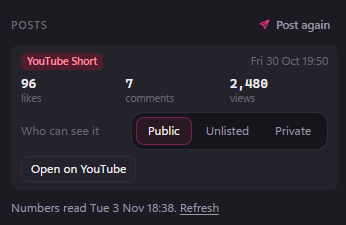
BosOn changes only who can see that video. Everything else about it stays as it was, and Open in YouTube Studio is there for anything more.
Sign in to YouTube once more
Changing who can see a video needs YouTube's permission to manage your videos, which BosOn asks for from this update. If you connected YouTube before, the post says To change who can see it from BosOn, sign in to YouTube again. Click it, then Sign in again in Connections, and leave every box ticked on Google's screen. You only do this once.
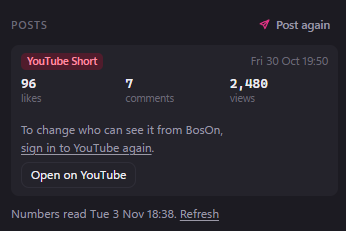
Until you sign in again, posting still works as before.