

Elements: characters, places and things
Give a character, a place or a thing a name, and use it in any picture by typing @ and its name.
An element is a character, a place or a thing with a name, such as your presenter, your shop or your product. Make it once from a picture, then type @ and its name in any words box, and the AI works from its pictures.
Elements are kept in BosOn, and their pictures are in your library. They work with every AI you've connected: Higgsfield's models get their own copy of an element the first time they use it (made again if its pictures change), and other AIs get its pictures to work from.
Find your elements
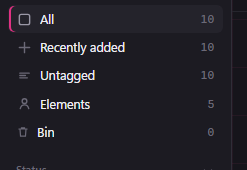
Click Elements in the sidebar, or the Elements button beside Create's start buttons.
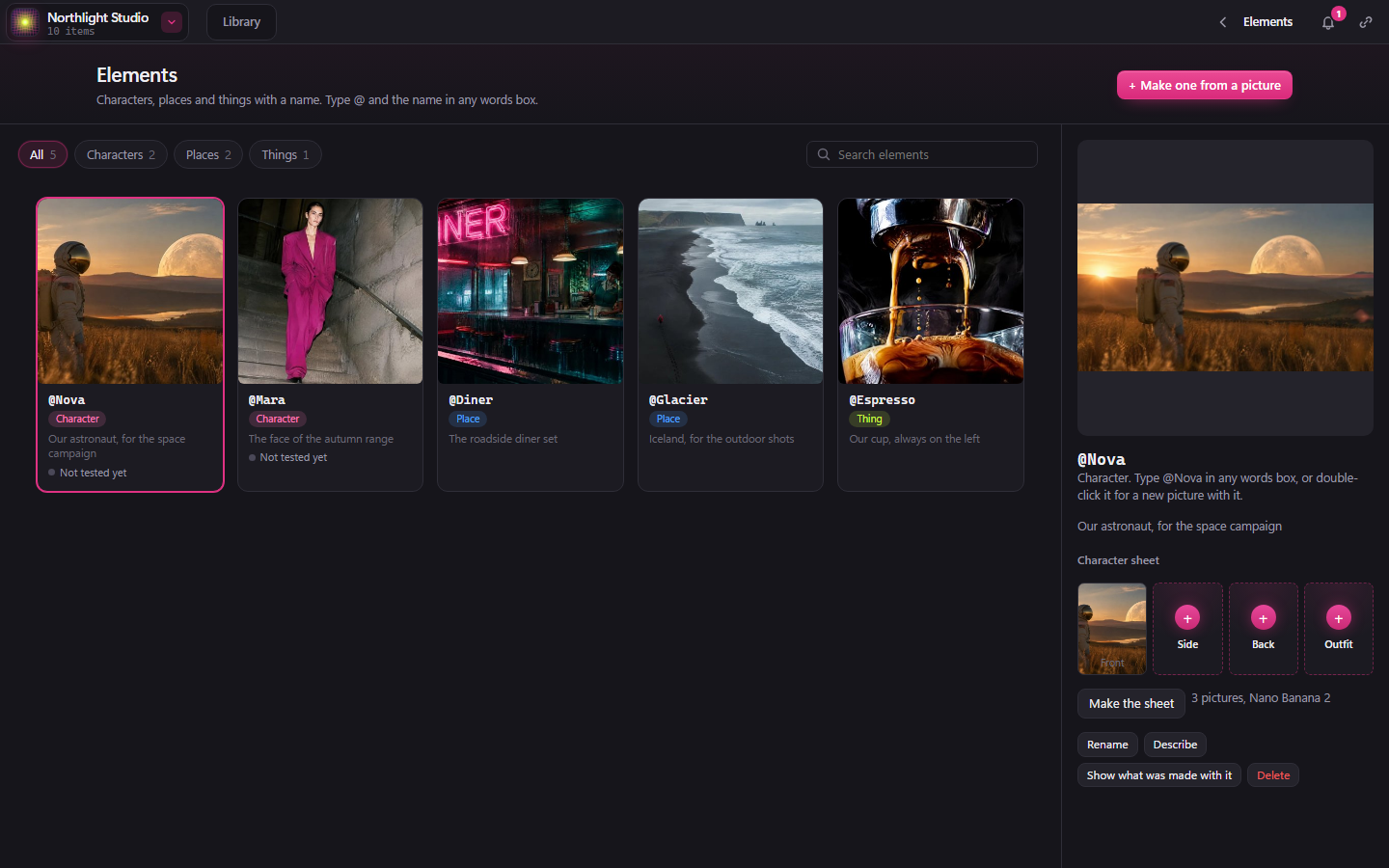
The Elements page shows them all. Use Characters, Places and Things to narrow them down, or Search elements. Click one to see it on the right.
Make one from a picture
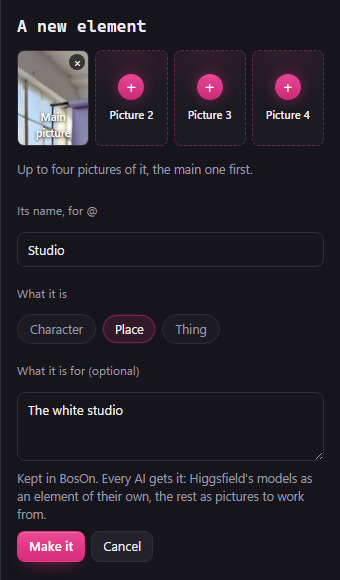
- Click + Make one from a picture.
- Choose its main picture, from your library or a file. You can add up to four pictures of it.
- Give it a name for @: one word, using letters, numbers, - or _.
- Choose what it is: Character, Place or Thing, and say what it's for if you like.
- Click Make it.
For a character, the pictures make a character sheet: the front, then the side, the back and the outfit. Only the front is needed. If you only have the front, open the character and click Make the sheet, and BosOn makes the other three for you. It shows which model it uses before you start.
Use an element
Type @ and its name in any words box, for example "@Nova walking through the diner".
Or double-click an element on the Elements page. A new picture opens with its name already in the words box.
Bring in your Higgsfield elements
If you made elements on Higgsfield, you can copy them into BosOn with their pictures. This needs your Higgsfield plan connected (see Connecting your services).
- On the Elements page, click Bring in from Higgsfield.
- Tick the ones you want. Any already in BosOn say so, and are never brought in twice.
- Click Bring in.
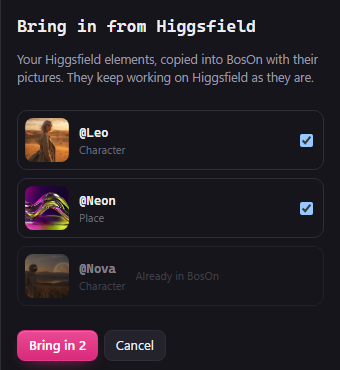
They keep working on Higgsfield as they are.
Test a character on Seedance
With your Higgsfield plan connected, a character has Test it, under On Seedance. It makes a 4-second clip at 480p to show whether Seedance will take the character, and then says Cleared on Seedance or Turned down by Seedance. It shows the cost in credits before you start.
Change, rename or delete one
Pick the element, then:
- Click its big picture to change it.
- Rename changes the name you type after @.
- Describe says what it is and when to use it.
- Show what was made with it finds everything in your library that used it.
- Delete takes it out of BosOn. Words that call it stay as they are, its pictures stay in your library, and any copy on Higgsfield stays there.