

Asking Claude, Codex and other AI apps about your library
Your AI apps on this computer can search your BosOn library and look at what's in it, so you can ask for past work in plain words.
The connection that lets your AI apps send their work to BosOn also lets them read your library. Ask in plain words, in Claude, Claude Code, Codex or another AI app on your computer, for example:
- "Find my live Seedance ads from October in BosOn."
- "Show me the approved shots in my Ferry folder, and tell me which prompt they were made from."
- "Use the Autumn hero picture in my library as the reference for a 9:16 version." Claude Code and Codex can open the file itself.
Turning it on
There's nothing extra to switch on: it comes with sending. If Send what Claude makes into BosOn (or Codex's switch) is on in Settings, Connections (click your initial at the top right, then Connections), your AI app can read your library too. See Sending to BosOn from Claude, Codex and other AI apps for where the switch is.
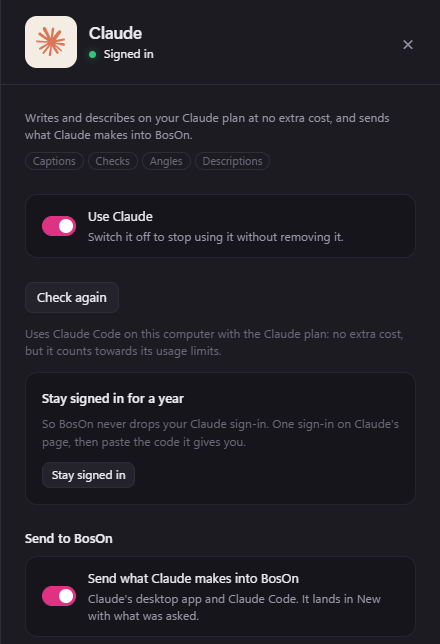
Your AI app picks up these tools the next time it connects to BosOn. In Claude Code, start a new session, or type /mcp and choose Reconnect on BosOn. Claude's desktop app and Codex pick them up the next time they open; to use them straight away in Claude's desktop app, quit it from the system tray (by the clock) and open it again.
What your AI app can search by
It can look for items by any mix of these:
- Words in names, notes, descriptions, tags and what was asked for.
- A folder, including the folders inside it.
- What you sorted it as: ad, social post, website image, photo, brand asset, or not sorted yet.
- Picture, video or sound.
- Status: Unseen (not opened in BosOn yet) or Rejected. From the next desktop build; before it, New or an ad's Pending, Approved or Rejected.
- An ad's state: on Meta, Live, Paused, Ended or In review; not on Meta, as you set it: Ready to launch, Live, Paused, Ended or Rejected.
- When it was added to BosOn.
- Stars and tags.
- What made it: the AI app that sent it (Claude, Codex), the platform (Higgsfield, ElevenLabs) or the model (Seedance, Nano Banana).
- Whether and where it was posted: Instagram, Facebook, YouTube or TikTok.
It searches your main workspace unless you name another, such as a client's, or ask it to look in all of them.
What your AI app sees of an item
- The picture, about 1,000 pixels across. For a video it's one frame; a sound file has no picture.
- How it was made, where BosOn was told: what was asked for, the model, and which app sent it.
- Its status, notes, tags, folders and stars.
- Where and when it was posted, with the numbers BosOn last read, and how it did as an ad on Meta.
- Where the file is on your computer, so Claude Code or Codex can open it or use it.
It only reads
Your AI app can't change, move, post or delete anything in your library. Sorting, posting and launching stay in BosOn. Reading works whether BosOn is open or closed.
What your AI app reads, such as an item's picture and details, goes to that app's own company as part of your chat (Anthropic for Claude, OpenAI for Codex), the same as anything else you share with it.
Only AI apps on your computer
It works with AI apps that run on your computer and can use local MCP servers: Claude's desktop app, Claude Code, Codex, Cursor, and others set up with Another AI app.
- Claude in a web browser, Claude on your phone, and cloud routines run on the internet, not on your computer, so they can't reach your library.
- Windows only for now.
Tips
- Say "in BosOn" or "in my library", so the AI knows where to look.
- Ask for a few at a time ("my five best-rated ads"); the AI reads a short list and can ask for more.
- If the AI says it can't find something, try a word from its name or a tag, or name the workspace it's in.