

Setting up your library
What BosOn asks the first time you open it: where to keep your library, and the name of your first workspace.
The first time you open BosOn, it sets up your library: the folder on your PC where everything you keep in BosOn lives. It opens on a welcome screen: click Start.

Choose where your library goes
BosOn suggests a BosOn folder in your Documents. To keep it somewhere else, such as a bigger drive, click Change… and choose a folder.
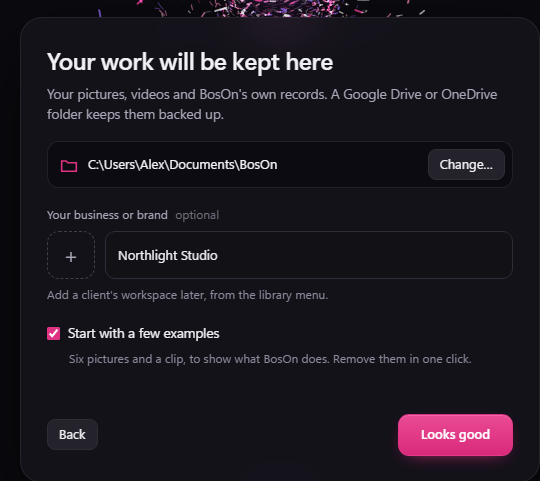
Your library is ordinary files and folders on your own PC. BosOn keeps it there, not in the cloud.
Name your first workspace
A workspace is one brand's or business's own space in your library. Type the name of your business or brand, and add an icon for it if you like. Both are optional, and you can change them later.
Working for clients as well? You can add a client's workspace later, from the menu under your workspace's name, at the top left.
Start with a few examples
Start with a few examples is ticked to begin with. It adds six pictures and a clip to your library, to show what BosOn does with your work: statuses, kinds, tags, stars and a folder. Untick it if you'd rather start with an empty library.
Click Looks good to finish. BosOn then shows the services you can connect. Connect any you use now, or skip this and come back later. See Connecting your services.
The examples, and removing them
The examples sit in an Examples folder, and each one is marked Example, so you can always tell them from your own work.
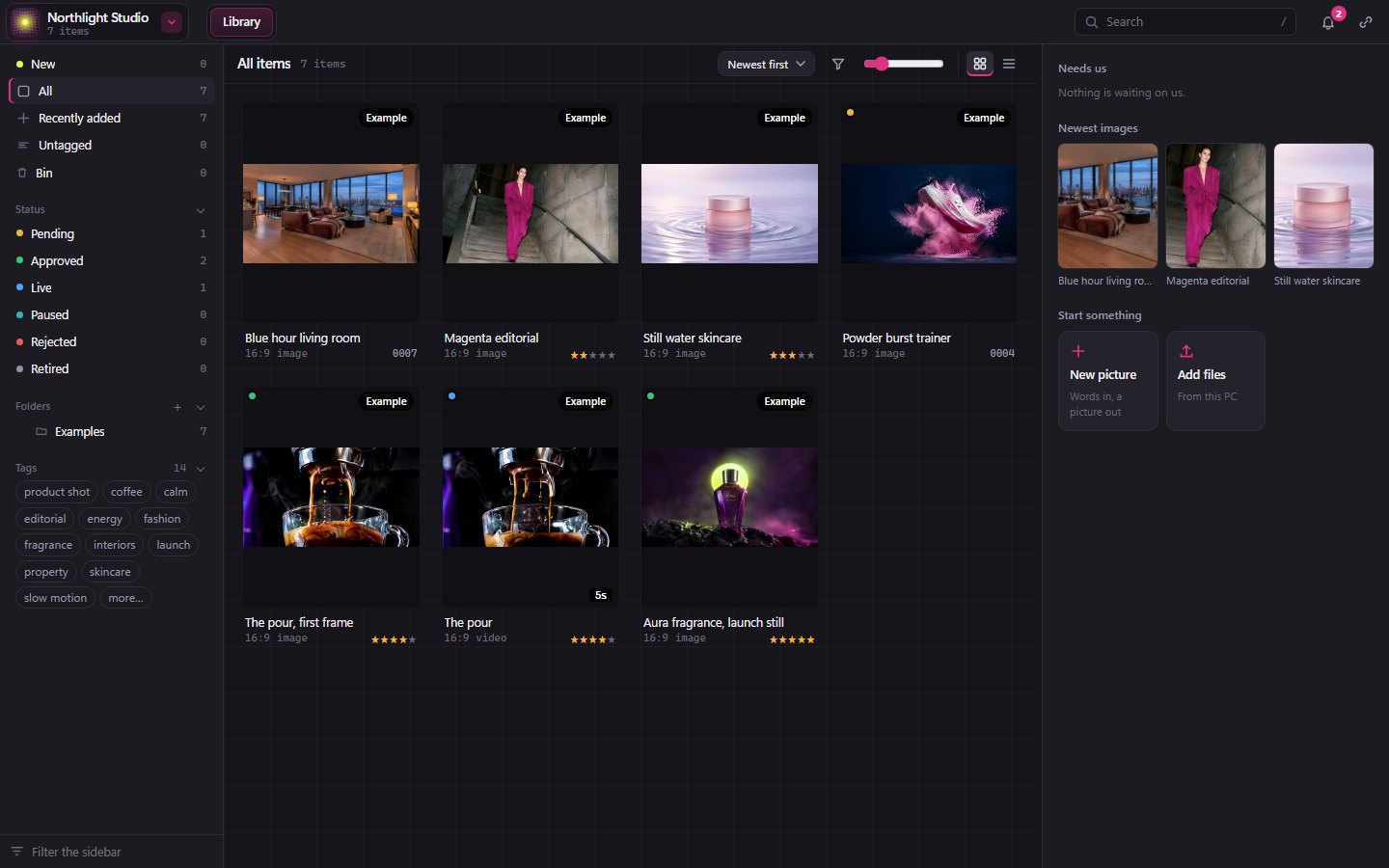
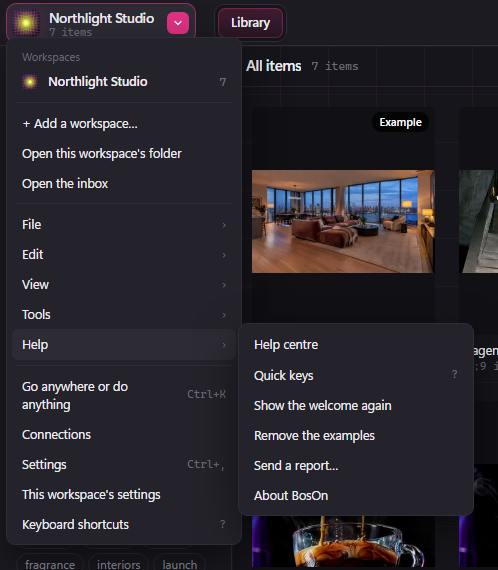
When you've had a look, remove them in one click: click your workspace's name at the top left, then Help, then Remove the examples. That option only shows while there are examples in your library.
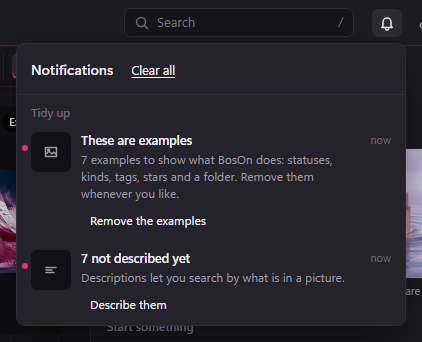
Or use the note in your notifications (the bell at the top right), These are examples, and click Remove the examples there.
The examples and their files are removed for good. They're ours, not your work, so nothing of yours goes with them: anything you've added to the Examples folder yourself stays.
If you move or rename your library folder
Open BosOn and choose the library again from its new place. Everything in it follows.