

Installing BosOn
How to download and install BosOn on Windows 10 or 11 during early access, and what to do if Windows warns you first.
BosOn is a desktop app for Windows 10 and 11. During early access, it's available to people we've let in from the early-access list.
Before you start
- A PC running Windows 10 or Windows 11.
- The 8-character code from your early-access email. It's the same code as your referral code.
The download page, getboson.app/download, is coming soon. It asks for your code, and it opens for you once your early-access place is ready. We'll email you when it is.
Install it
Download the installer
Open the download page, enter your 8-character code and download the installer.
Run it
Open the file you downloaded. Windows asks for permission, because BosOn installs into Program Files for everyone on the PC.
If Windows warns you
While BosOn is new, Windows may show a blue "Windows protected your PC" box before it runs the installer. Click More info, then Run anyway.
Open BosOn
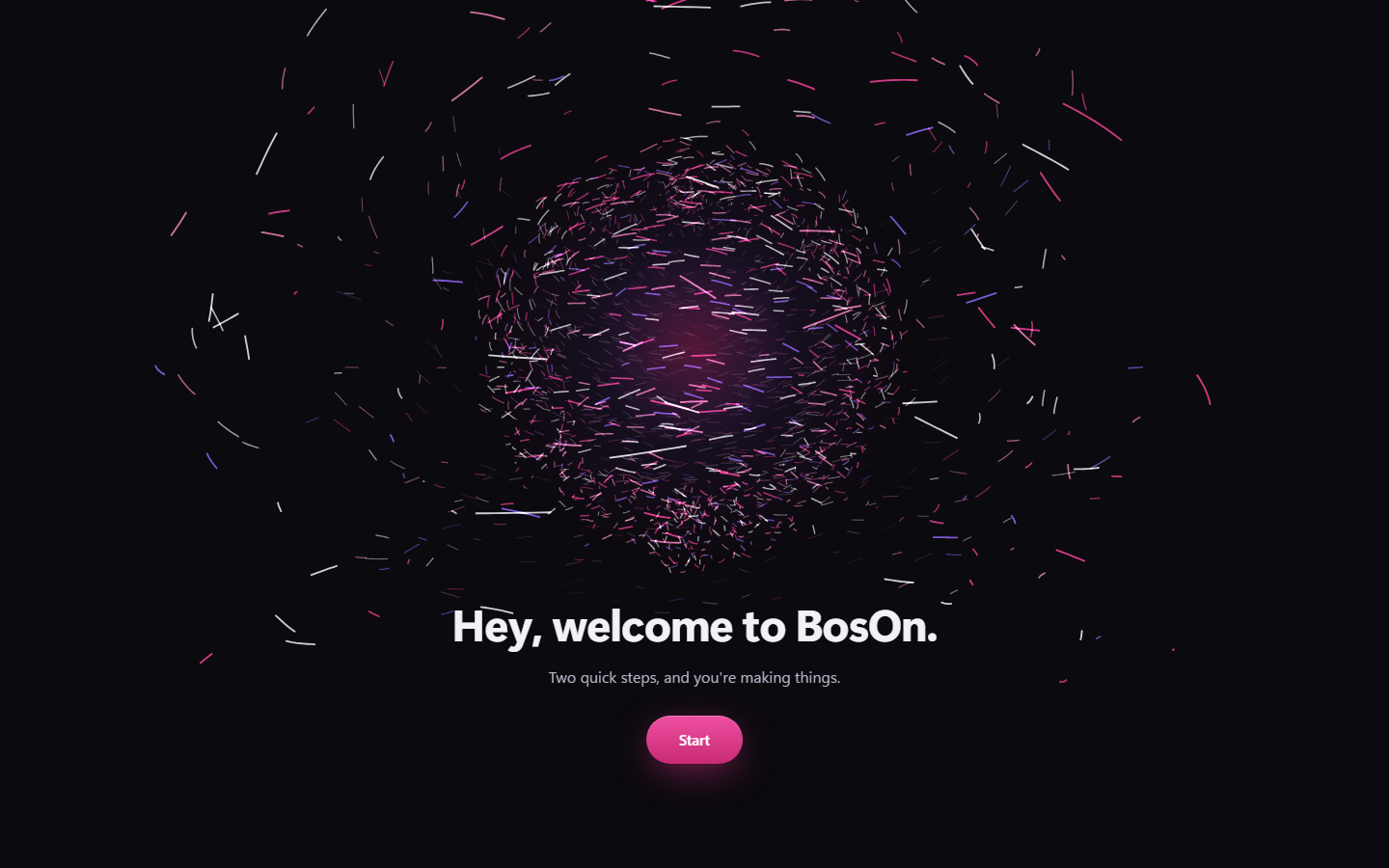
When the installer finishes, open BosOn from the Start menu or the desktop. It opens on a welcome screen: click Start to set up your library. See Setting up your library.
Uninstalling
Remove BosOn from Windows Settings, Apps. Your library and your saved connections stay on your PC, so if you install BosOn again later, everything is still there.