

Sending to BosOn from Claude, Codex and other AI apps
Switch it on once, and every picture, video or sound file your AI apps finish lands in your BosOn library.
If you make pictures, videos or sound with an AI app on your computer, such as Claude or Codex, BosOn can collect them for you. Switch it on once, and whenever the app finishes something, it sends it straight into your library.
Where to find it
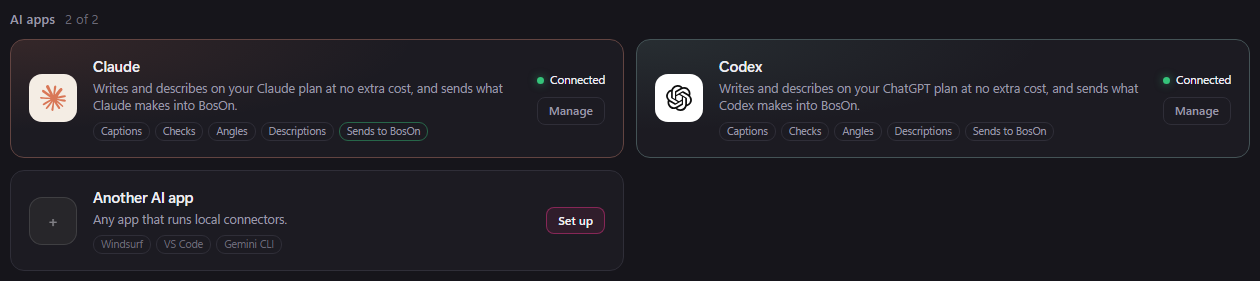
Open Connections: the plug button at the top right of the library. It starts with AI apps: a tile for Claude, one for Codex, one for Cursor if it's on your computer, and Another AI app.
Claude
Claude's tile is also where you connect your Claude plan (see Connecting your services). When you connect Claude in BosOn, sending comes on with it.
To turn it on or off yourself, click Manage on Claude's tile, then use the switch Send what Claude makes into BosOn. It covers Claude's desktop app (Chat and Cowork) and Claude Code together. While it's on, Sends to BosOn lights up on the tile.
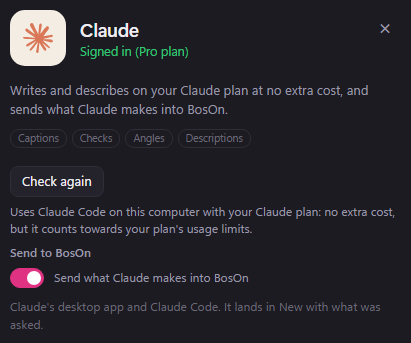
If your Claude was connected before this arrived, BosOn asks once, at the top of Connections. Click Turn on, or Not now. It's never switched on without asking.

When you switch it on, quit Claude from the system tray (by the clock) and open it again, and start a new Claude Code session, so they pick up the change.
Codex
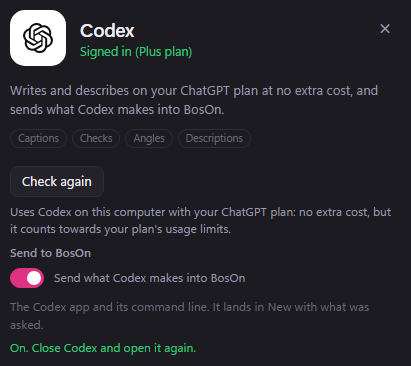
Codex's tile is also where you connect your ChatGPT plan: click Sign in with ChatGPT, which uses the Codex app's own sign-in. When you connect it in BosOn, sending comes on with it, unless you turned it off before. To turn it on or off yourself, click Manage on the tile and use the switch Send what Codex makes into BosOn. The switch only shows when the Codex app is on your computer. When you switch it on, close Codex and open it again, as BosOn says.
Cursor
If Cursor is on your computer, it has a tile of its own. Click Turn on, then switch on Send what Cursor makes into BosOn, and close Cursor and open it again. The tile then says Sending to BosOn. If it says Needs reconnecting, Cursor was set up for another copy of BosOn: turn the switch on again.
Only BosOn's own line is added to the app's settings. Nothing else there changes. To stop, turn the switch off.
What happens next
Whenever the AI finishes a picture, video or sound file, it sends it to BosOn. It arrives in New, with which app made it and what you asked for.
- It's copied, never moved: the original stays where the AI saved it.
- The same file is never added twice.
- It works whether BosOn is open or closed. If BosOn is open, it tells you within a few seconds that new items have arrived. Either way they wait in New until you sort them.
- The AI decides when something is finished, so drafts and test renders usually stay out. If it misses something you wanted, ask it to send it to BosOn.
Sending to BosOn is free, and works without signing in.
Another AI app
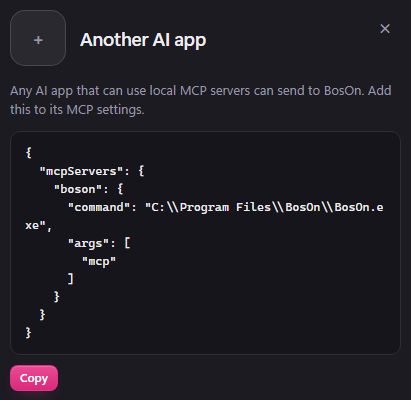
Any AI app that can run local MCP servers (connectors that run on your computer) can send to BosOn, for example Windsurf, VS Code or Gemini CLI. Click Set up on Another AI app, click Copy, and paste the setup into that app's MCP settings.
What it can't do
- Claude in a web browser, Claude on your phone, and cloud routines run on the internet, not on your computer, so they can't reach BosOn. For pictures and videos made on Higgsfield, use Bring in from Higgsfield instead.
- A picture Claude draws with its own code inside a chat only comes across if it's small.
- Windows only for now.