

Getting a Kie.ai API key
Make a Kie.ai key for BosOn's video models, cap what it can spend, and paste it into BosOn's Settings, Connections.
With a Kie.ai key, BosOn runs Seedance, Kling, MiniMax, Wan and other video models on your own Kie credits, often for less than the makers' own prices, in the Video tool and for explainers. Kie is a reseller: it runs other companies' models through one account and one balance.
Add some credits first
Kie works from a balance of credits. One credit is half a US cent, so 200 credits is $1. Start small: add a few dollars at kie.ai/billing, try a few clips, and top up when you know what you use. Each model's price shows in BosOn before you press Make it, and on Kie's pricing page.
Make the key
Open your API keys
Sign in at kie.ai/api-key and create a new key. Call it BosOn.
Set a daily limit
Kie lets each key have an hourly, a daily and a total spending limit. Set a daily limit you're comfortable with, so a mistake can never run up more than a day's worth. Leave the IP list empty, or BosOn stops working when your internet address changes.
Copy the key
Copy the whole key.
Paste it into BosOn
Open Settings, Connections, then Kie.ai. Paste the key into API key and click Save, then Test it. When it works, the panel shows your balance, such as 1,840 Kie credits left (about $9.20).
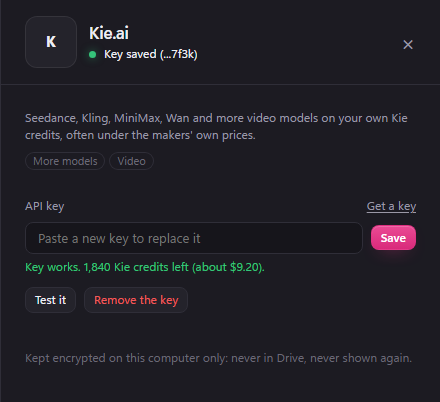
Its Use Kie.ai switch turns it off without removing the key.
Worth knowing
Because Kie passes your jobs on to other companies' models, a job sometimes takes longer than usual or gets stuck. If one fails, BosOn shows it as failed, and a failed job costs nothing. Kie's logs page shows what each job used.
If it goes wrong
- "this key isn't valid": the key was deleted, or not copied whole. Make a new one and paste it in.
- No credits left: top up at kie.ai/billing. Kie stops all jobs when the balance runs out.
- It hit its limit: the key reached the hourly or daily limit you set. Wait, or raise the limit on Kie's API key page.