

Getting a Gemini API key
Make a Google Gemini key in Google AI Studio for Nano Banana pictures and music, and paste it into BosOn's Settings, Connections.
With a Gemini key, BosOn makes and edits pictures with Google's Nano Banana models and makes music for explainers, under your own Google account.
Make the key
Open Google AI Studio
Go to aistudio.google.com/apikey and sign in with your Google account. The first time, accept the terms: AI Studio makes a Google Cloud project and a key for you.
Create a key for BosOn
On the API Keys page, create a key in your project. If you already use Google Cloud, you can bring a project in first: Dashboard, Projects, Import projects.
Restrict it to Gemini
If the key is marked Unrestricted, choose Add restrictions, then Restrict to Gemini API only, and confirm. It still does everything BosOn needs.
Copy the key
Copy the key from the API Keys page.
Paying for it
Google's free tier lets you try the Gemini API with limits, and some models and higher limits need billing turned on for the key's project. What each model costs, and what's free, is on Google's pricing page; how to turn billing on is on Google's billing page.
Paste it into BosOn
Open Settings, Connections, then Gemini. Paste the key into API key and click Save, then Test it.
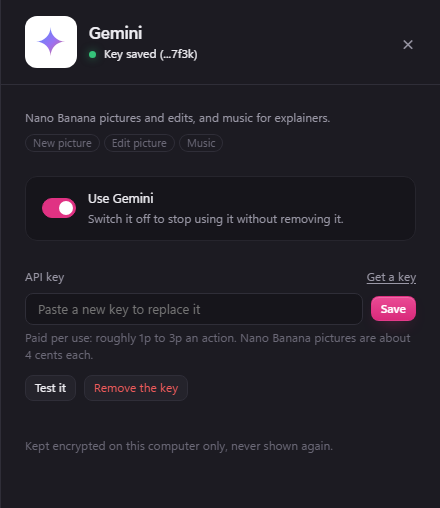
Its Use Gemini switch turns it off without removing the key.
If it goes wrong
- "Google says this key isn't valid": the key was deleted, or not copied whole. Make a new one at aistudio.google.com/apikey and paste it in.
- "Google says this key has used up its quota": on the free tier, turn on billing for the key's project (Top up beside the message opens AI Studio's API keys page, where Set up billing is); otherwise wait a while and try again.
- "Google won't let this key do that": check the key's project and its restrictions in AI Studio.