

Getting an OpenAI API key
Make an OpenAI key for GPT Image 2.5 pictures and writing, verify your organisation, and paste the key into BosOn's Settings, Connections.
With an OpenAI key, BosOn makes and edits pictures with GPT Image 2.5, and writes captions and descriptions when Claude isn't available. It's paid from your OpenAI API balance, which is separate from a ChatGPT subscription.
Make the key
Open your API keys
Sign in at platform.openai.com/api-keys and click Create new secret key.
Name it
Call it BosOn, and leave it in your default project.
Copy the key
Click Create secret key. OpenAI shows the key once, so copy it now.
Verify your organisation, for pictures
OpenAI asks for your organisation to be verified before its GPT Image models will make pictures. Go to Settings, Organization, General, and click Verify Organization, then follow OpenAI's steps. Writing works without it.
Add credit
The API is paid as you go from a prepaid balance. Add some at OpenAI's billing page. What each model costs is on OpenAI's pricing page.
Paste it into BosOn
Open Settings, Connections, then OpenAI API. Paste the key into API key and click Save, then Test it.
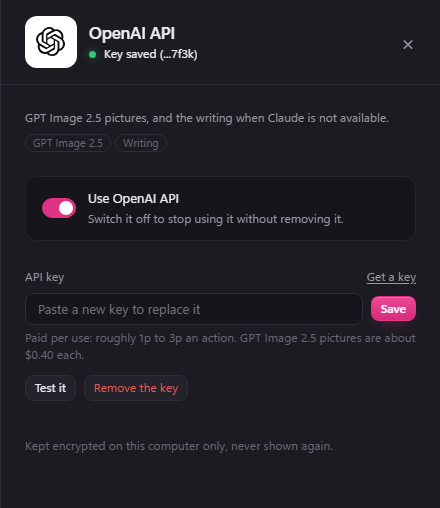
Its Use OpenAI API switch turns it off without removing the key.
If it goes wrong
- "OpenAI wants your organisation verified before it will make pictures": verify it as above, then try again.
- "OpenAI says the account has no credit": press Top up beside the message, or add credit at OpenAI's billing page.
- "OpenAI says this key isn't valid": the key was deleted, or not copied whole. Make a new one and paste it in.