

Making sound in the Sound Lab
Voiceovers, sound effects and music, a voice cleaned of its room, and a sound split into its voice and the rest, on the services you've connected.
The Sound Lab makes voiceovers, sound effects and music, cleans up a recording, and splits a sound into its voice and the rest. Open Sound Lab from Create.
Across the top, choose what to make: Add sound, Voiceover, Effects, Music, Clean up or Split. You only see what your connected services can make. With nothing connected that makes sound, the Sound Lab says so, with a Connect one button: see Connecting your services. With ElevenLabs, the top of the Sound Lab shows how many characters you have left this month.
Make a voiceover
Write the words
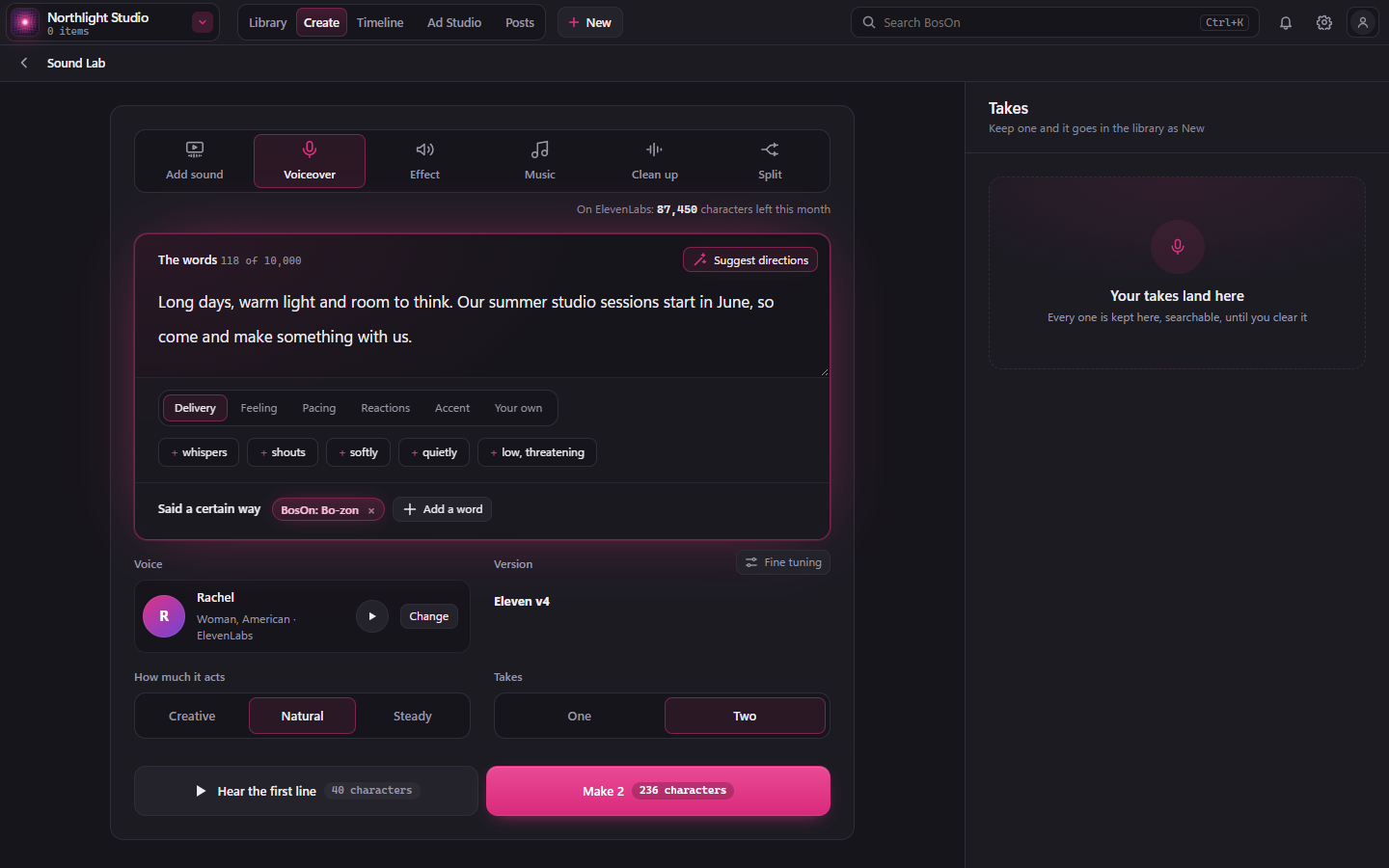
Click Voiceover and type The words, read in one take, exactly as they should be said.
To direct the read, click in the words, then choose a direction from Delivery, Feeling, Pacing, Reactions, Accent or Your own. Suggest directions adds some for you, dotted, without changing your words: Take them all or None of them. Directions work on ElevenLabs' Eleven v3 and v4.
Choose the voice
Under Voice, click Change to choose from every voice you've connected. Version shows which model reads that voice. A connected ElevenLabs account is available for music and effects. Choose How much it acts: Creative follows directions the most, Steady the least.
Fine tuning, in the corner of Version, opens the voice's sliders. A dot on it means they have been changed.
Said a certain way, under the words, keeps how a word is said, such as a brand name: click Add a word, then type the word and how it sounds. Every voiceover says it that way.
Make two takes
Click Make 2 for two takes of the whole read to choose from. The button shows what it costs, such as the characters it uses on ElevenLabs.
Keep a take
Your takes land on the right, under Takes, newest first. Play each one, then:
- Keep puts it in your library as New.
- Studio sound takes the echo and the noise out, then warms and levels it like a podcast.
- Use again puts its words and settings back on the page, to make it again with a change.
- Bin it takes it out.
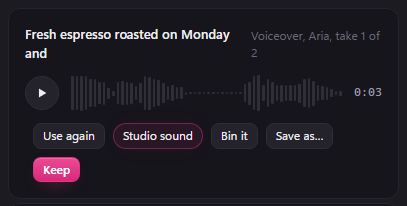
Every take stays there, searchable, until you clear it. Search your takes, or narrow them by kind, or to Drafts or Kept. Save as… saves a copy wherever you like.
Make music
Click Music, then Describe the music in your words, start from a feel such as Warm and hopeful or Cinematic, or choose Like a track to start from one of your own sounds. Under How long, choose a length, or Fit a clip: the music is made to that clip's length, plus 2 seconds so it never runs out early.
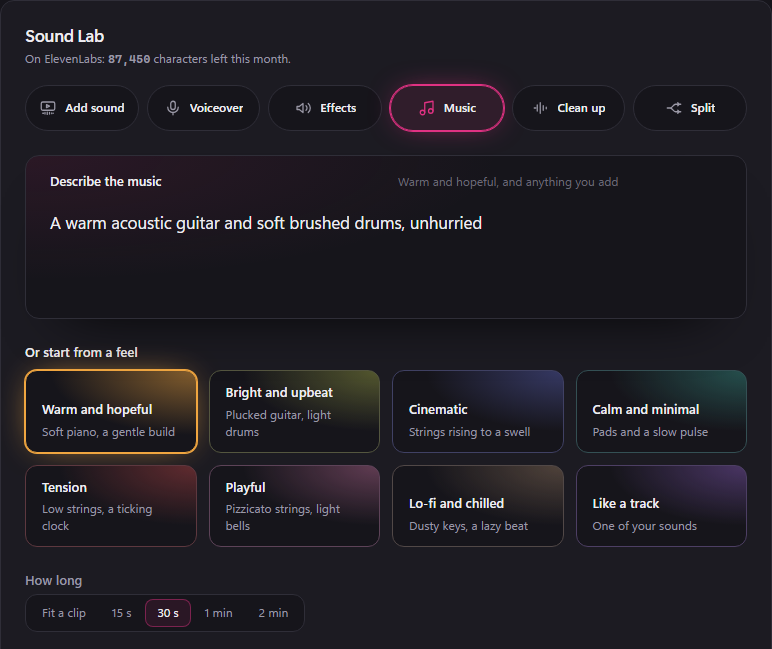
When several choices are available, Made by shows the eligible music makers and their prices. BosOn uses the studio model set for that service. The music is instrumental, at one even level so a voice can go on top. Click Make it.
Effects, clean-ups and splits
- Effects: say What it sounds like, or start from one of the ideas. On ElevenLabs, choose How long, or let it choose. Click Make 2.
- Clean up: choose A clip's sound or A recording. Finish with Studio sound, warmed and levelled like a podcast, or Just clean. Then click Make it.
- Split: choose a clip or a recording, then Split it. You get two parts back: the voice on its own, and the music and effects together.
- Add sound: Choose a clip, and BosOn watches it and plans its voice, music and effects. You hear it all against the picture before you keep it.
Making sound uses your connected service's normal allowance or credit. For ElevenLabs' sound effects, music and clean-ups, its key needs the extra permissions in Getting an ElevenLabs API key.
To leave a draft and come back to it, or to collect a paid request that was interrupted, see Return to your sound work.