

Making an explainer
Micro Studio writes a complete narration, plans its visual cards and makes a narrated video. Read and improve scripts together, and review continuity across generated micro dramas.
Micro Studio makes narrated story videos, the kind faceless channels post: it suggests what to make, writes one complete narration, plans pictures around those exact words, then draws, animates, voices and assembles the scenes. Open it from the Micro Studio tile when you start something new.
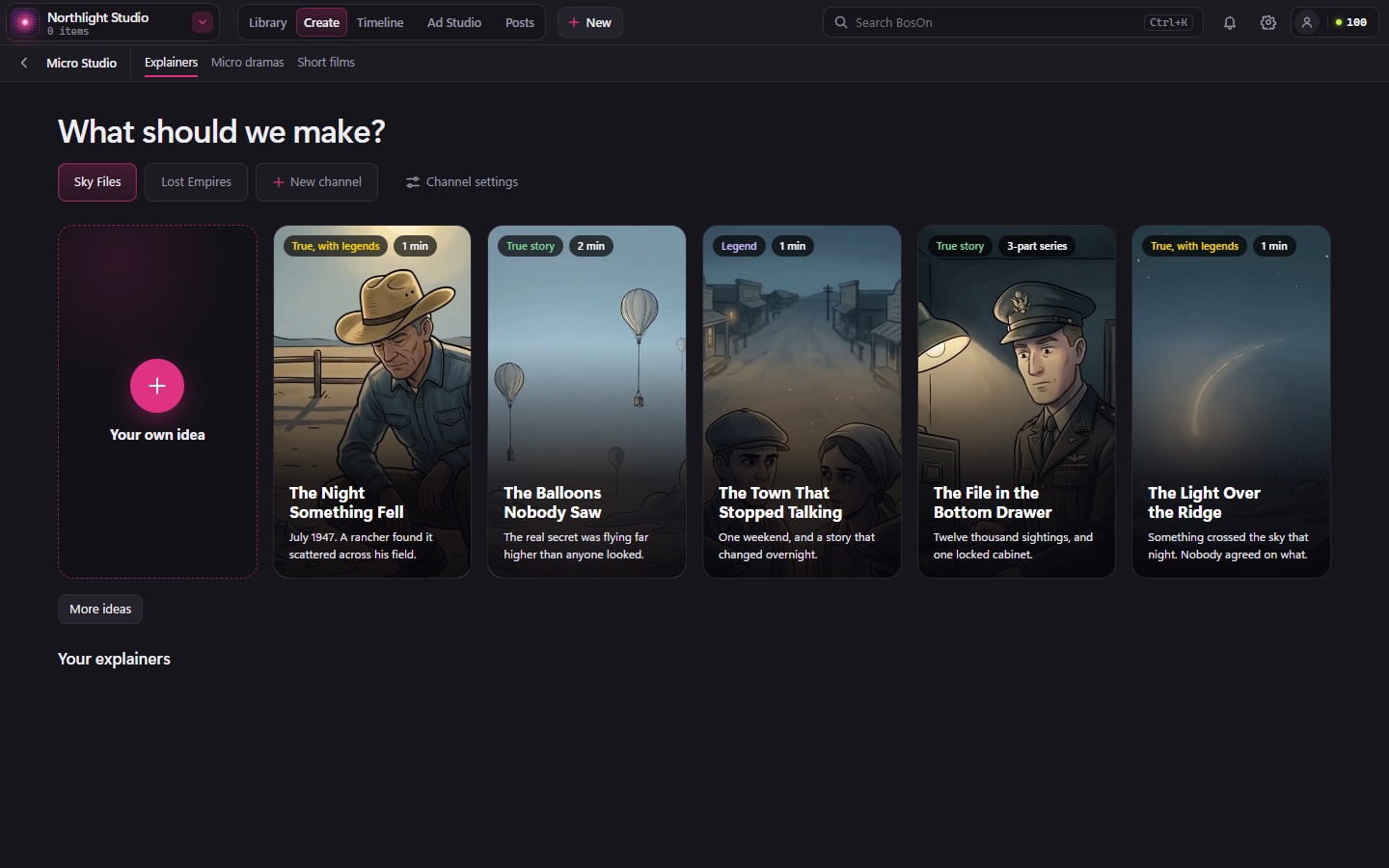
Your channels
Run several channels, each with its own look, voice and ideas. They sit in a row under What should we make?: click one to see its ideas, and a new explainer there starts with its settings.
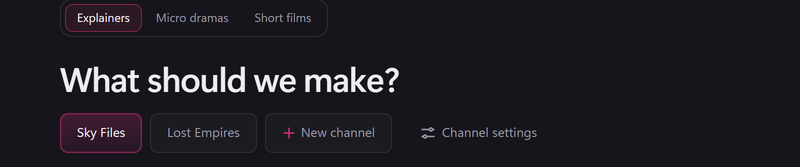
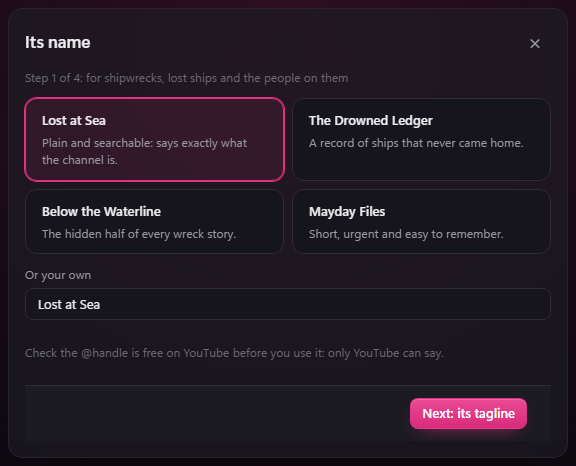
+ New channel asks what it's about, then sets it up in four steps:
- Its name: pick one of the suggested names, or type your own. Check the @handle is free on YouTube before you use it: only YouTube can say.
- Its tagline: a line under its name, suggested or your own.
- Its look: the one look every video, thumbnail and its channel art are drawn in.
- Its channel art: two banners and two profile pictures in that look to choose from. The two you choose go in your library at YouTube's sizes. Skip for now leaves it for later.
Then its first ideas are suggested. Channel settings changes its name and what it's about, and what its new explainers start with: look, voice, length, shape, music and captions (As usual keeps the studio's own). Delete channel shows once you have more than one.
Coming in the next desktop build: shape your channel
In Channel settings → About the channel, describe the subjects you cover, who watches and how you want the stories to sound. Help me shape this develops those words with you. If the description is unclear, it asks up to two short questions before proposing a description, three example ideas and a sample opening.
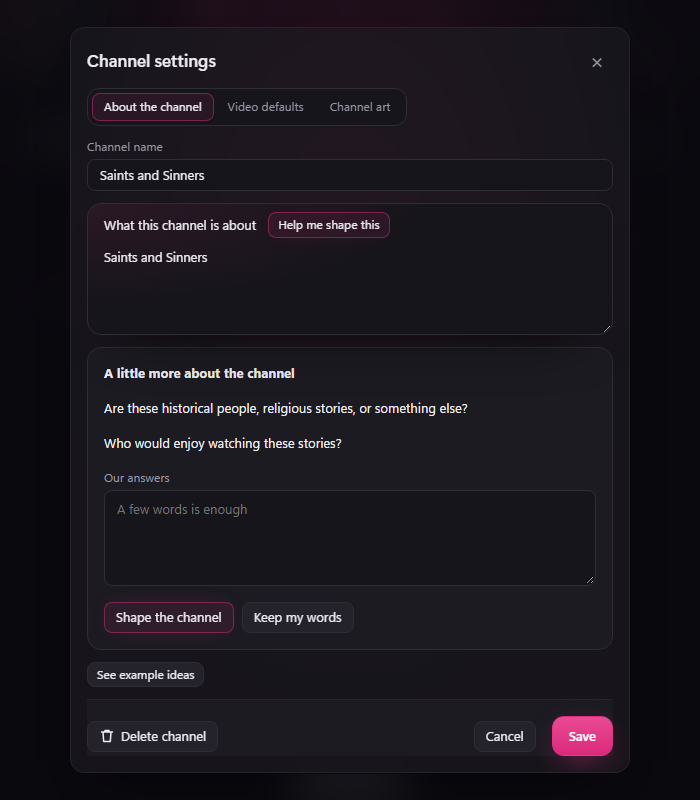
Edit the proposed description, then choose See example ideas to try it without rewriting your words. Undo rewrite restores the words you had before the suggestion. Nothing from this step changes the saved channel until you choose Save, or Next: its name when setting up a new channel.
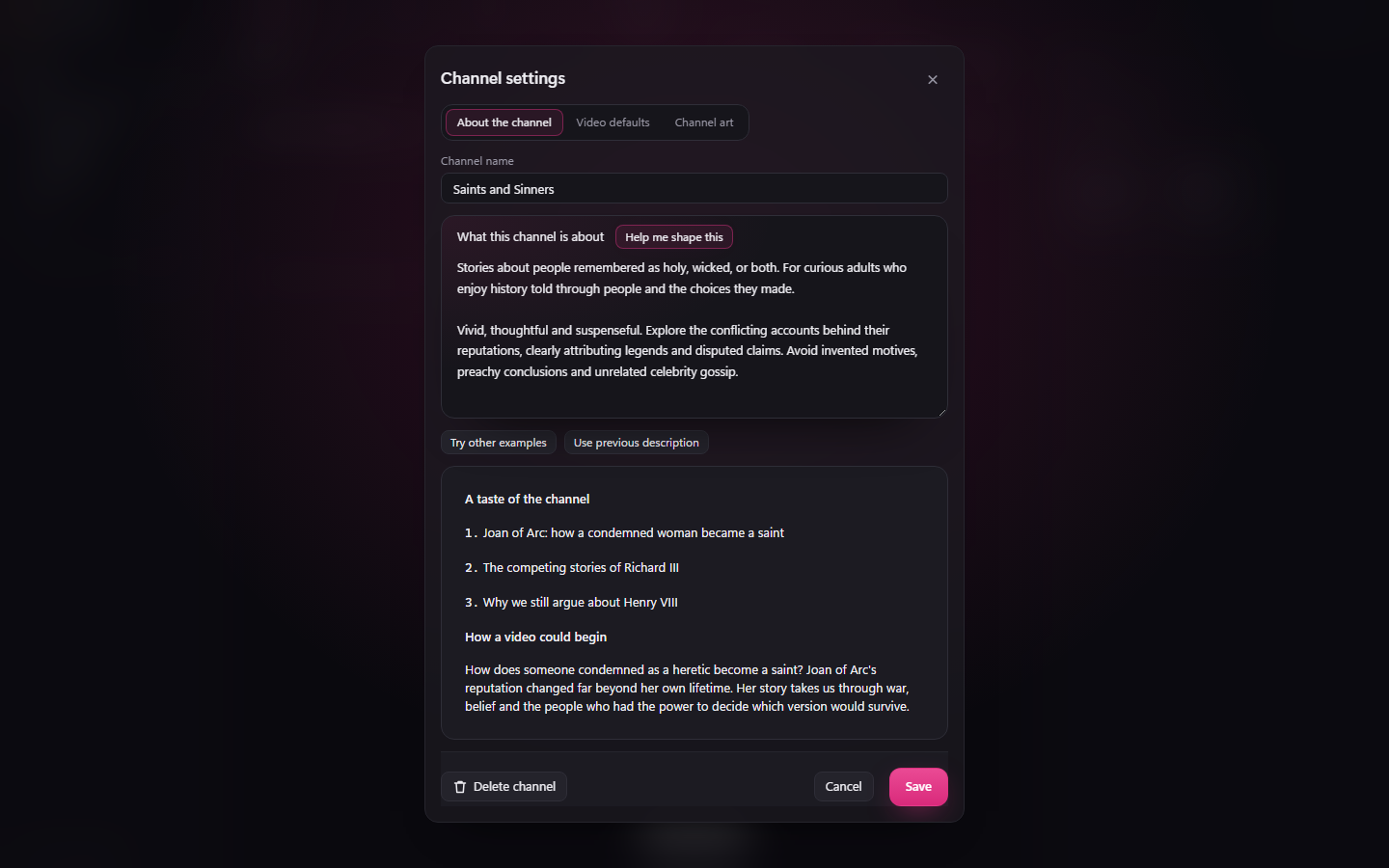
The saved description guides new ideas and scripts. Video defaults holds the look, narrator's voice, length, shape, music and captions; Channel art holds the artwork. After saving a changed description, Use previous description brings the previous words back into the editor for you to review and save.
A new channel begins with Shape the channel, before its name, tagline, look and artwork. These examples help you judge the channel's direction; they are not trend or search-demand measurements.
What should we make?
From the next desktop build, Micro Studio opens on its first page: Explainers, Micro dramas and Short films at the top, your channels under What should we make?, then the ideas for the channel you're on.
- Your own idea is the first card: type a topic and press Enter or the Go arrow.
- Each idea is a picture with its title and opening line, the length it needs or how many parts, and whether it's a True story, a Legend, or True, with legends, so a legend is never sold as fact. Click one to open its pitch.
- The × on an idea is Not for me: fewer like it. More ideas keeps what's showing and never repeats one it suggested or you've already made.
A new channel says once what it's about (UFOs and conspiracy theories, say), and its ideas come from that. A legend's script tells the story in full first, each claim said as its teller's, and keeps what the record says against it for the end, before a closing question it leaves open. A wide subject, like the fall of an empire, is told whole rather than through one odd detail, and a fact is only ever stated exactly as the record has it.
From a topic to a storyboard
A few words are enough to start. Try "St Christopher". BosOn pitches a title and opening line, explains its angle and suggests a look and length. To steer it, type a reply such as "darker" and press Go. BosOn remembers the earlier pitch. If you already have a script, tick Use my words and go straight to Write the storyboard.
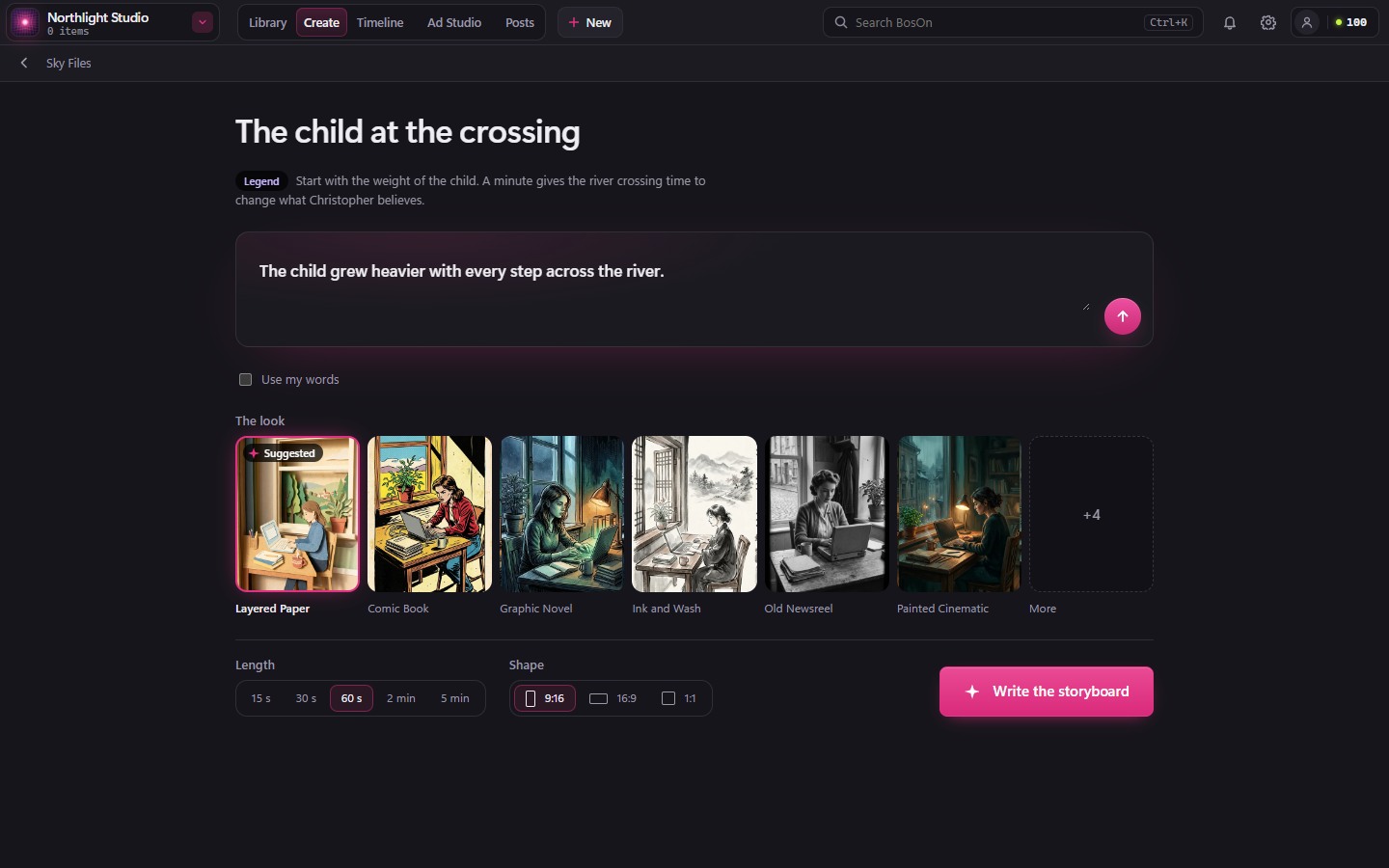
A channel idea opens already pitched. Its own picture appears on the Suggested look. Choose a different look, length or shape if you like. Select the channel name in the bar to return to its cards.
Write the storyboard opens the editor and starts writing. The pitch carries its Look things up choice into the story. You can change the switch before Write it again. Open Setup to change the look or length.
Find your work again (coming in the next desktop build)
Click Create, then Projects. Explainers, Micro dramas and Stories (short films) each show how many you have; a kind with nothing in it isn't shown. Click a card to carry on where you left off.
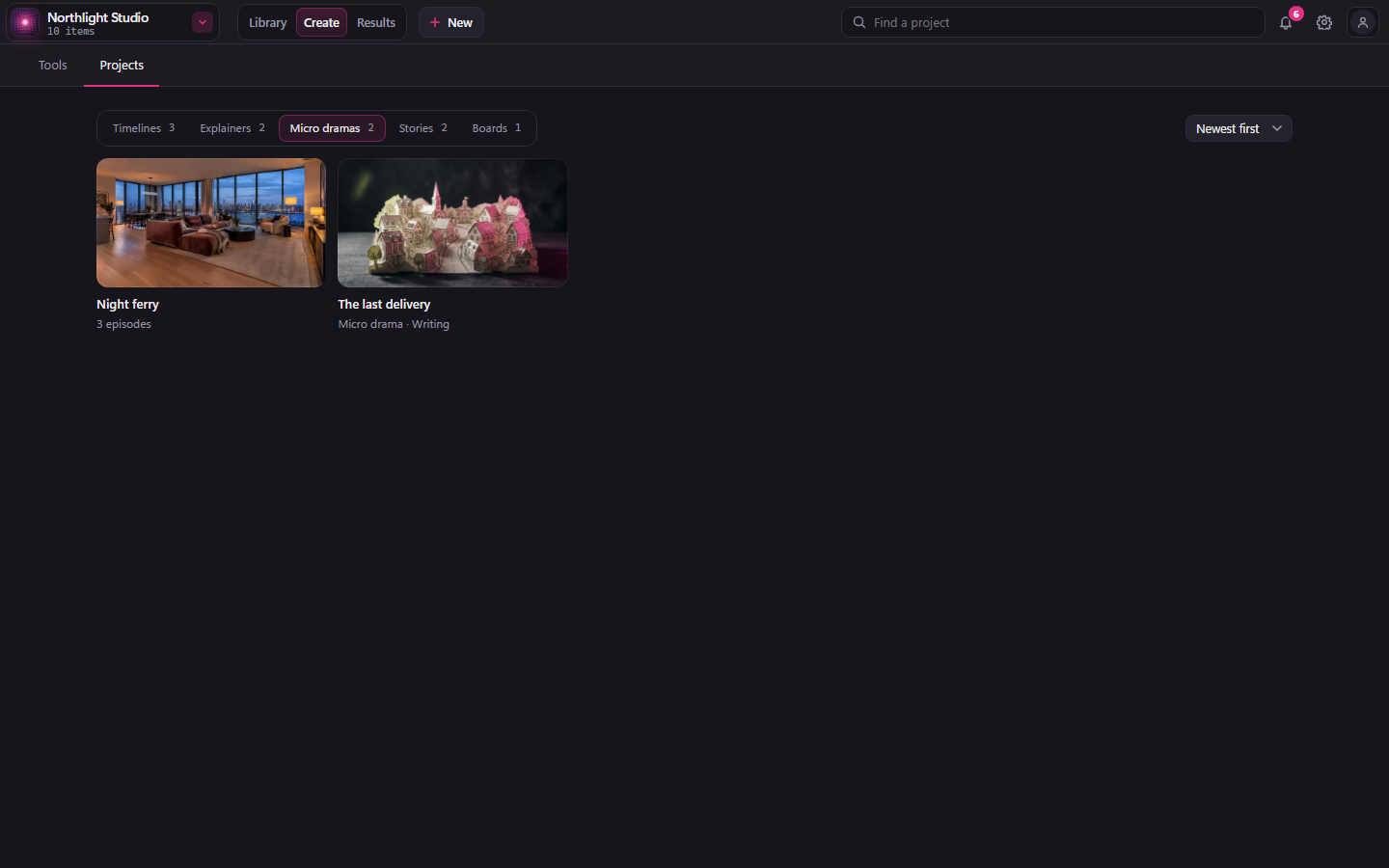
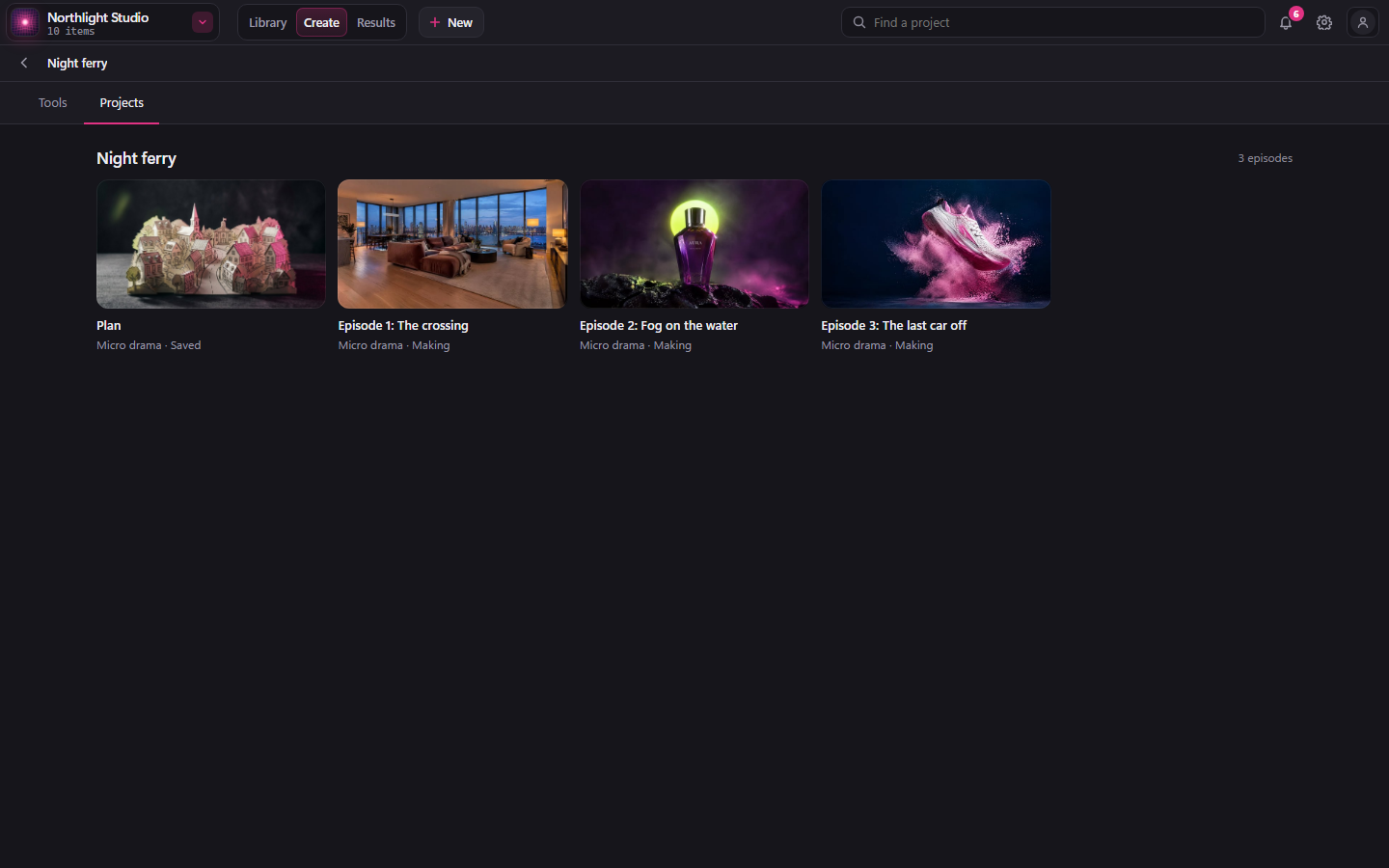
A series is one card, with how many episodes it has. Click it to see its plan, labelled Plan, then its episodes in order. Back, or Projects in Create's bar, takes you back to the list. Sort by Newest first, Oldest first or Name A to Z. Find a project searches the kind you're on; a search that matches an episode opens its series at that episode.
The story, scene by scene
Explainer editor (coming in the next desktop build)
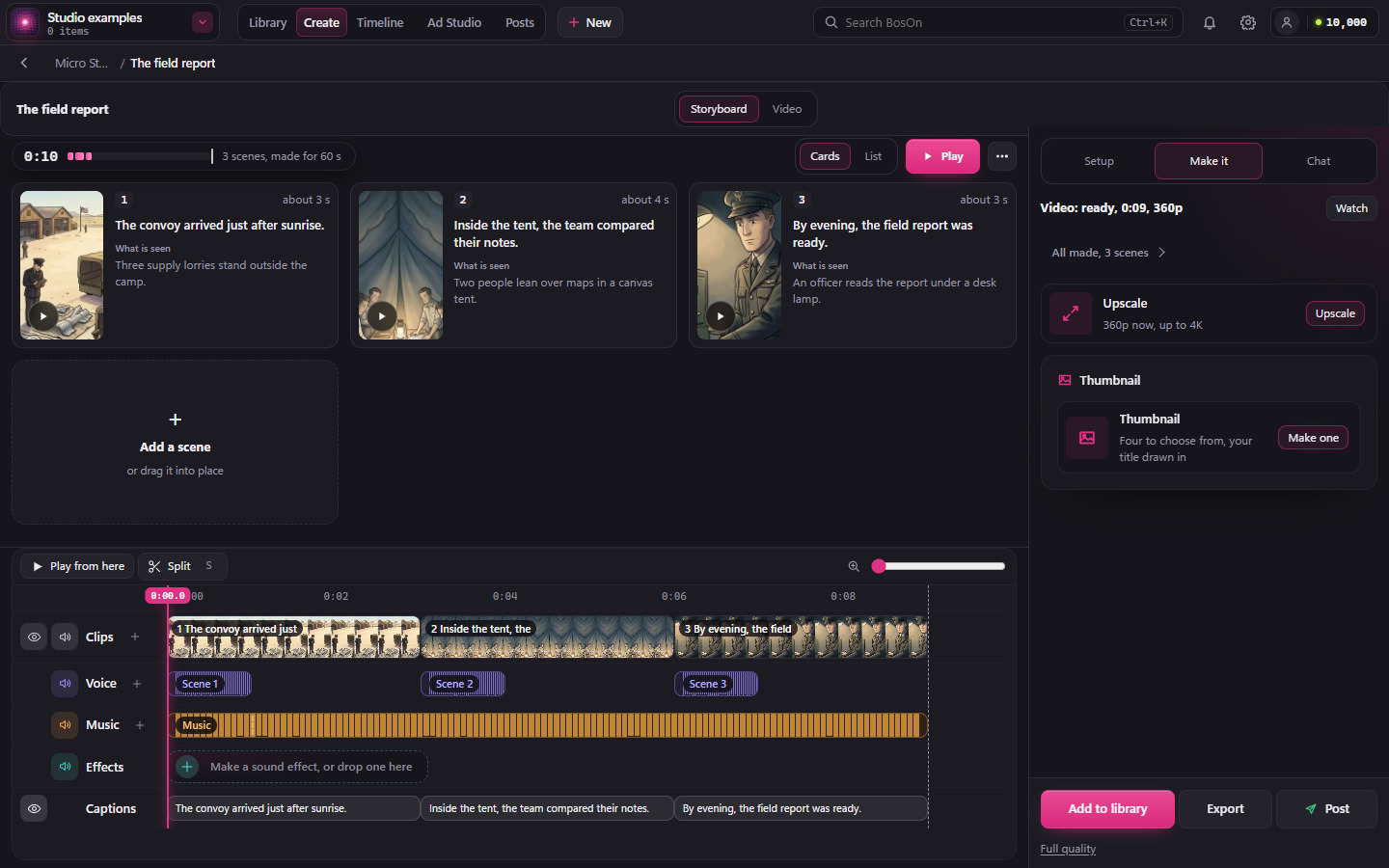
Write the storyboard opens the editor. Each scene has a card above the timeline. Press play on a card to watch that clip. Select a card or its clip on the timeline to open the same scene in the sidebar.
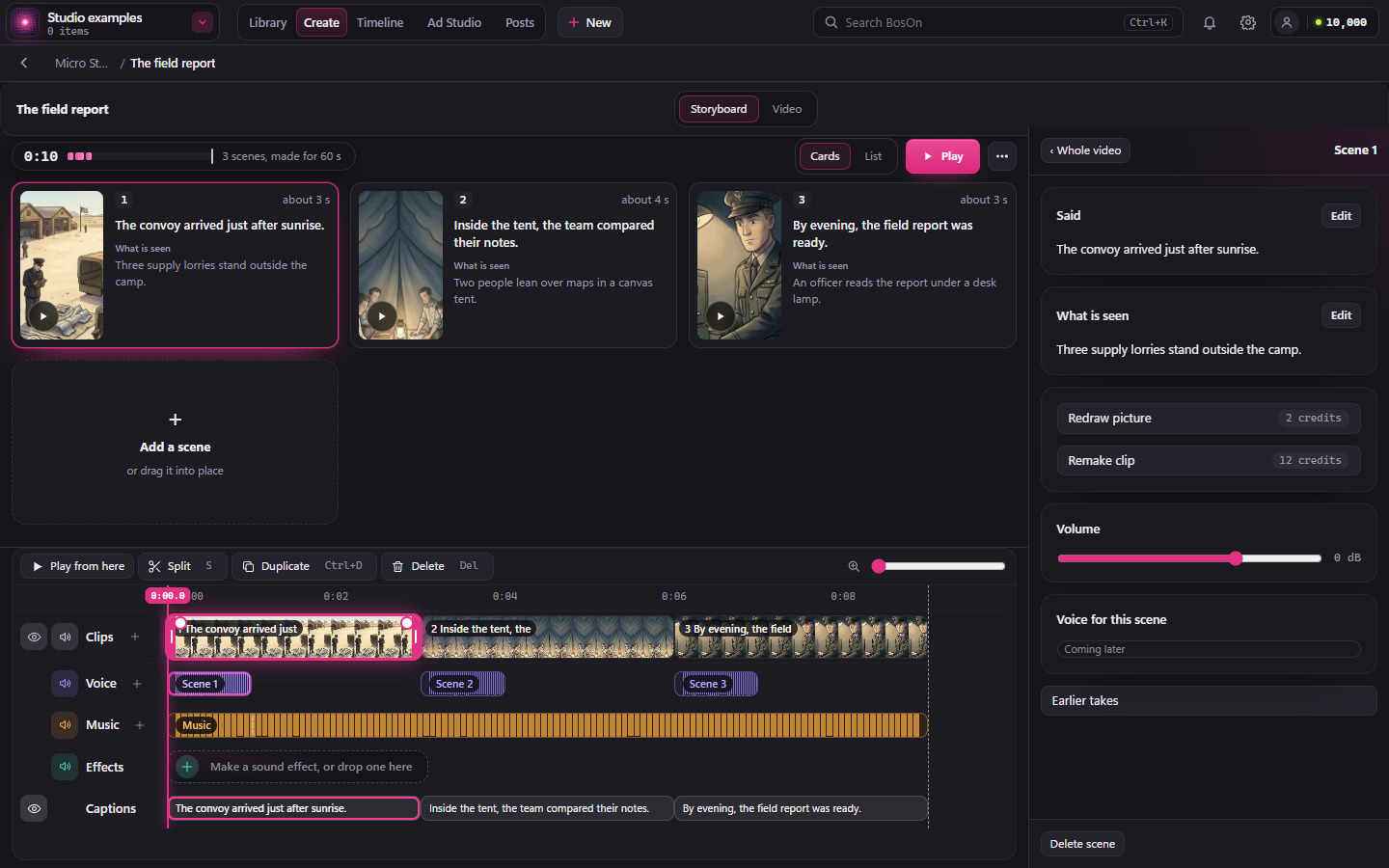
Edit a scene. Choose Edit beside Said or What is seen, then Save or Cancel. You can save edits to several scenes before pressing Make the changes. The price includes any other lines your voice service needs to read. If a longer read needs a longer clip, BosOn keeps the paid read and asks you to check the new clip price. Editing a storyboard before you have made any media is free. Use Redraw picture or Remake clip for another take, or Earlier takes to return to an earlier version.
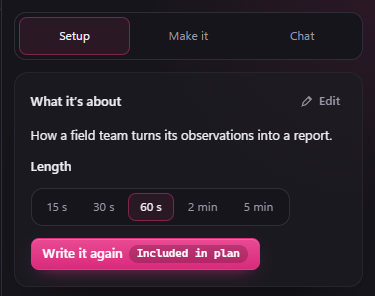
Change the brief. Choose Whole video, click empty space or press Escape to return to Setup, Make it and Chat. In Setup, What it's about shows your saved words. Choose Edit, change the brief and press Save. Cancel keeps the previous words. Length and Write it again sit directly underneath. Set Look things up before rewriting. A metered writer shows an estimate when your workspace has a recent charge for each writing step.
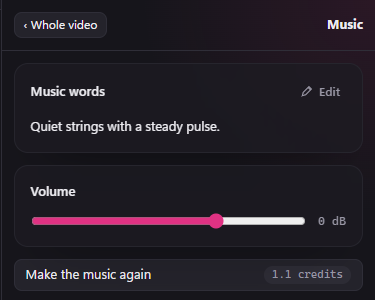
Change pictures or sound. In Setup, Picture details describes the setting and appearance shared by your pictures. Picture details and music words also use Edit, Save and Cancel. Select the Music track to change its volume or choose Make the music again at the price shown.
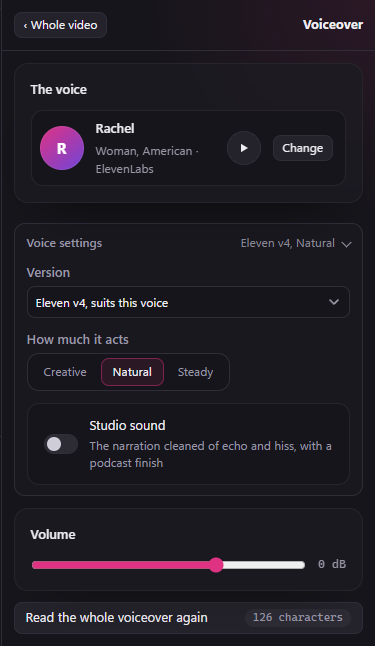
Select the Voice track to choose the narrator, adjust volume or Read the whole voiceover again. Check the price before confirming. Direct ElevenLabs voices also let you choose the version and how much the voice acts.
Open Chat to ask about the story or request a change. Use + between cards to add a scene, or drag a card to change its place.
Check the pictures before making clips. The look describes how the video is drawn; each scene's description says what is actually there. If a picture contains an unwanted object or effect, check both the scene description and the shared look details before drawing a replacement. Making a new clip from the same picture can keep the same mistake.
For diffuse film-set atmosphere, use haze and describe it in the scene where you want it. Haze is a faint layer through the room, rather than a plume coming from an object. Smoke or steam needs a sensible source in that scene. A family listening to a radio belongs in their room; the performers they hear belong in the broadcast studio. Making replacement pictures or clips uses your connected service's normal generation allowance or credit.
A story too big for one video can become a series of 2 to 5 parts, planned together with one look, voice and music. Every part ends on a cliffhanger except the last, which resolves the story, and each part is made and finished on its own, so Part 1 can go out while Part 2 is being made. In Create, Projects, a series shows as one card with its parts inside.
Read and improve the whole script
For an AI-written explainer, open Read the whole script in the story settings. In the next desktop build, you will find it under Setup. This reads directly from the cards, so edits to a card's words appear here too. New explainers are written as connected narration before their words are divided into visual cards; the selected length is a whole-script target rather than a fixed card count.
AI-written explainers finish with a short, thought-provoking question that invites the viewer's own interpretation. The question follows the story and channel tone: a spooky account keeps its atmosphere, with uncertainty attributed naturally rather than ending in a detached research verdict. New scripts, Improve whole script, lengthening and generated ending edits follow this rule. Existing scripts change only when you ask for a revision. Micro dramas, short films and supplied words retain their own ending rules.
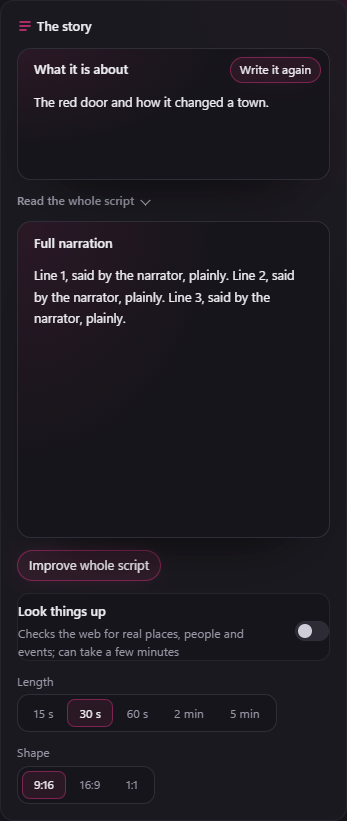
Choose Improve whole script to review a replacement. Your current script stays in place until you choose Use this script. Keep current script dismisses the proposal. Matching passages retain their pictures; changed passages need new pictures and clips. The previous draft is retained for recovery. A proposal cannot be applied over edits made since it was prepared.
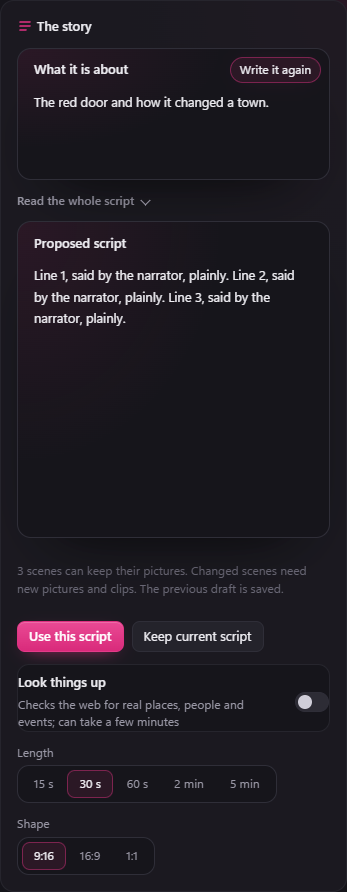
From the next desktop build, Look things up is decided for each story as it's written; the switch in Setup changes it for Write it again. When it is on, the research pass runs before writing and its facts are reused for the same brief. Expand Sources to see retained research links. These links accompany the draft; they are not a guarantee that every statement has been verified.
Coming in the next desktop build: if BosOn cannot decide whether a story needs research, or requested web research fails or returns no usable facts and sources, writing stops with a reason. Your saved words stay in place so you can try again. A connection without web research support cannot silently answer from its existing knowledge instead. Sources still need your review; having a link does not prove a claim is correct.
Uploaded short-film scripts and Use my words keep their existing text-preserving workflow. They are excluded from whole-script rewriting.
Check micro-drama continuity
Generated micro dramas keep their script-first workflow. After writing a batch, BosOn reads the premise, characters, complete outline and all written episodes together once. Rewriting one episode checks it against the season without automatically changing its neighbours.
For an existing season, open Season continuity → Check season continuity. Findings show the affected episodes, conflicting passages and the proposed repair. Expand a correction to compare its current and proposed text. If a repair needs a new story decision, it is flagged for review.
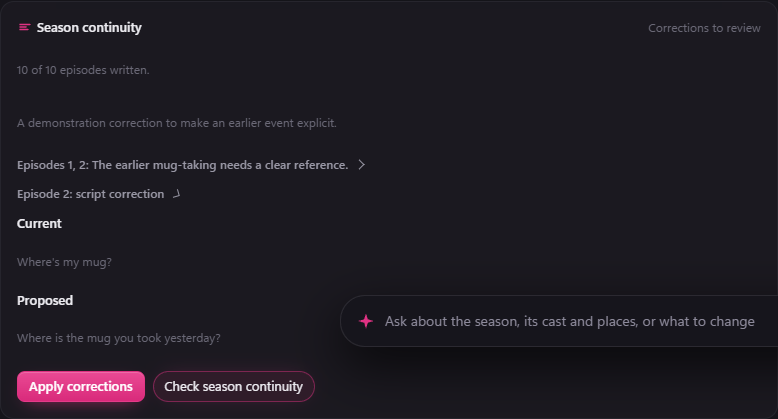
Choose Apply corrections to update only the affected passages and outline entries. Earlier scripts and media are retained. If an episode already has shots, open it and choose Break the corrected script down before making new pictures or clips.
The panel states how many episodes are written. An incomplete season is checked against its planned future payoffs without claiming the unwritten scripts were read. An interrupted or failed check leaves the drafts available and does not mark them checked. Reopening unchanged work makes no new review call. Uploaded scripts and standalone films are excluded.
The screenshots use demonstration projects to show the review controls. Review proposed wording before applying it.
Choose locations and prepare scene references
Coming soon. Short films and micro dramas aren't part of the beta yet.
Open The set for Places, Props and Outfits. A room is reusable; a scene's occupants, seats, clothing and current state belong to its setup.
Resolve saved writer blocks
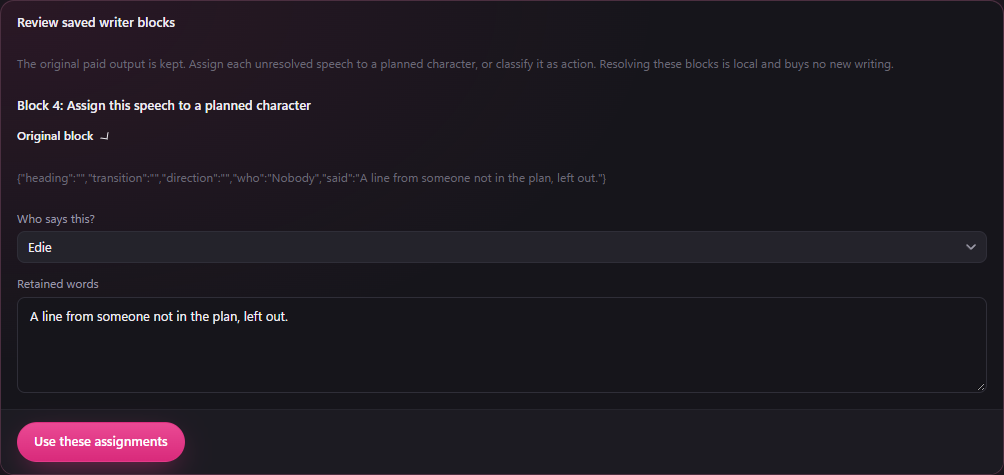
If a generated script has an unknown speaker or an untyped block, its paid output is kept. Review saved blocks shows only the affected rows. Choose the intended planned speaker, or deliberately mark a block as action, then choose Use these assignments. This does not purchase another script or discard valid dialogue. Resolve these rows before buying a breakdown or season continuity check.
If you edit the script while those blocks are pending, reconcile their retained words with your current script before replacing it. Your manual edits are preserved. After resolving the blocks, choose Check season continuity when you want the skipped season check; resolution does not purchase that check automatically.
Review the script facts
If you paste a script as NAME: lines, put each stage direction in brackets, for example (The door slams.). A line in capitals between speeches could be action or speech, so BosOn asks you to put it in brackets before it reads the script. Nothing you wrote is discarded.
Parsing keeps the script's scenes, action and dialogue, including action after the last speech. Analyse script confirms which connected AI performs the scene/presence and shot analysis. Parsing is local; API analysis has variable token billing. Matching complete analysis inputs are reused.
Scenes and presence appears for clean imports and generated scripts too. Open a scene to check its location, initial occupants, silent characters, arrivals, departures and outfit changes. Original passage shows the supporting source. Review Visible states when present. Correct a row with Save scene facts, then choose Use these scene facts. Unresolved assignments block dependent pictures.
In Visible states, Supporting source block identifies the original action and Takes effect from sets where its snapshot starts. Generated words need matching evidence in the same scene at or before that point. A later passage cannot support an earlier shot. If a passage is repeated, choose its supporting block explicitly. Moving the timing or accepting scene facts does not make generated words your authored instructions.
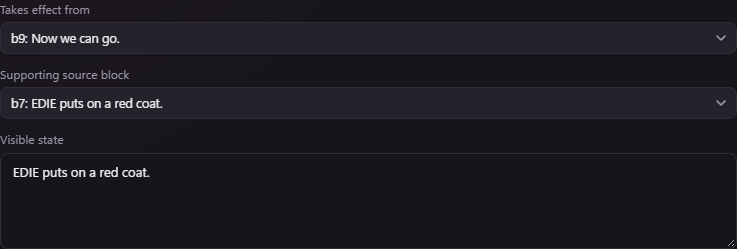
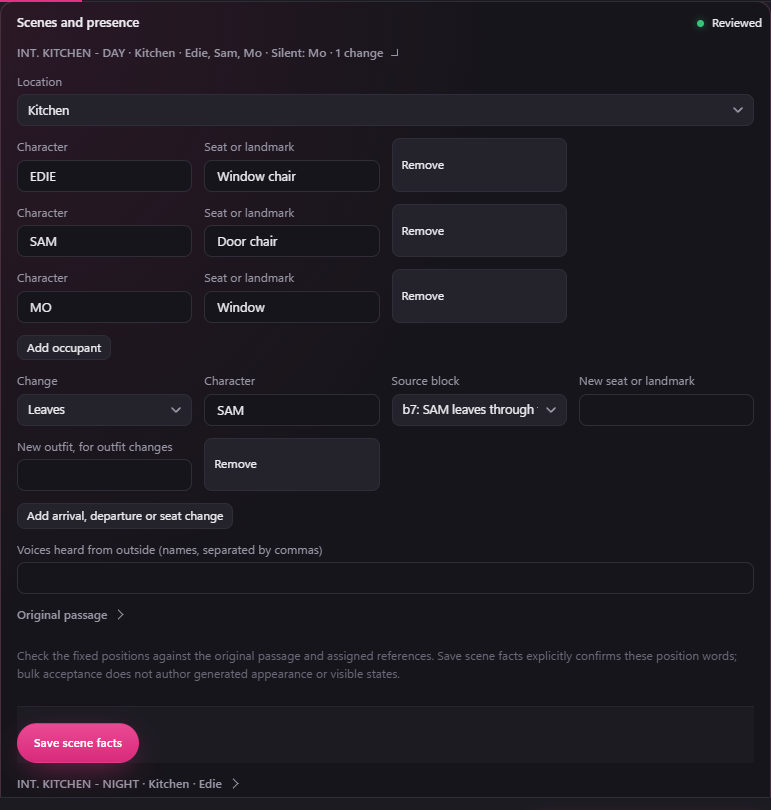
Existing media stays available when a script changes. Older projects still need their explicit fresh breakdown before editing or new generation. Ambiguous PDF layout recovery is a later workflow; unclear speaker layout is refused before production.
For supported uploads, the original file and its extraction details are kept with your workspace. Backups include these sources and matching saved analysis, so restoring your workspace can reuse that analysis without buying it again. Existing Final Draft scene headings keep their supplied scene boundaries even without an INT. or EXT. prefix.
Standalone action-only scenes are retained and flagged as uncovered. You can prepare locations, wides with the cast and storyboard pictures for the supported dialogue scenes. Missing silent coverage blocks generation or assembly of a complete film. You can deliberately assemble a separate finished sequence in Timeline, or revise the supplied script. Adding footage in Timeline does not clear the story engine's uncovered-scene guard or automatically complete its film assembly.
Get ready, in order (coming in the next desktop build)
Get ready lists the work in the order it is done: Who is where, Who plays whom, Clothes, Props, then The set. The set comes last because each wide with the cast is drawn from the people's clothes. The set is one row for each place and its wides with the cast, and it says what needs you next, such as 1 place to check, 1 wide to check, 2 to draw or Ready. Each row opens the set on its own tab, and The set opens each place on the step that needs you.
Get it all ready shows its price straight away. If the price changes before anything is drawn, BosOn tells you first.
Prepare and accept the reference pictures (coming in the next desktop build)
In The set, Places shows each place one step at a time. Across the top are its steps: the place, each wide with the cast, then the shots. Each step has a small picture and where it stands, such as To check, Drawing, Used, Waiting or 3 of 12 made. The set opens on the step that needs you. Click another step to look at it; it stays open until that work moves on.
- Choose the cast and location pictures. Before drawing, check the labelled description, camera position and reference pictures.
- Draw and inspect the empty location. Its picture fills the panel, with Change it, Choose Element and Use this location under it. Choose Use this location before adding the cast: it stays lit while BosOn keeps the place, then the set moves on to that place's wide by itself. Only required extra views are prepared. A location built by an episode is also available to its season. Building the remaining places buys only the missing locations and preserves each existing saved Element. Episode lighting, positions and clothing remain separate.
- Choose Draw the wide, right under a wide not drawn yet, with its price (Draw the wides when a place has several). While it is drawn, its step says Drawing. While BosOn checks who sits where in it, which takes a few minutes, it says Checking seats. Then it waits for you. A wide is a clean staging reference. It is separate from the opening storyboard frame, which applies the script's actual opening state. Check each one, then choose Looks right (see below): the set moves on to that place's shots.
- Choose Draw the storyboard. Every shot is made from its approved wide, so everyone stays where they are (see Shots from the wide).
Check each wide with the cast
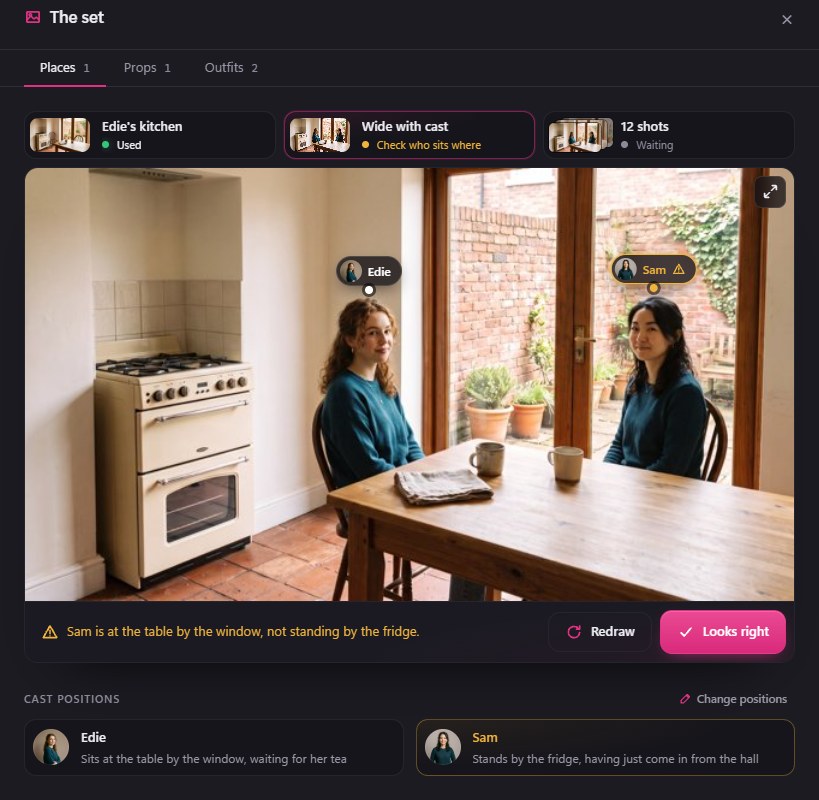
The wide fills the panel, with each person's name pinned on their face. A name is pinned only where BosOn found that person's face in this picture. Under the picture, one line says what BosOn's check found, if anything; whoever it names is marked in amber on their pin and in Cast positions. If the check finds a problem in a newly drawn wide, BosOn draws it once more, telling it what was wrong, before it shows it to you.
- Looks right approves this wide. None of its shots are cut until you do. It also approves a wide the check doubted: the decision is yours.
- Redraw opens a box for a note, such as "Sam stands by the fridge, not at the table", with its own Redraw and price: up to two pictures, in case the new wide needs a second try. The note stays with that wide and goes into every later redraw of it. It redraws that wide and nothing else.
- Cast positions lists each person and where they are. Change positions lets you edit each one, then Save positions or Cancel.
After a redraw or a change of positions, the wide needs Looks right again. When people move during a scene, each new arrangement has its own wide, numbered across the top, and each one waits for its own Looks right.

Shots from the wide
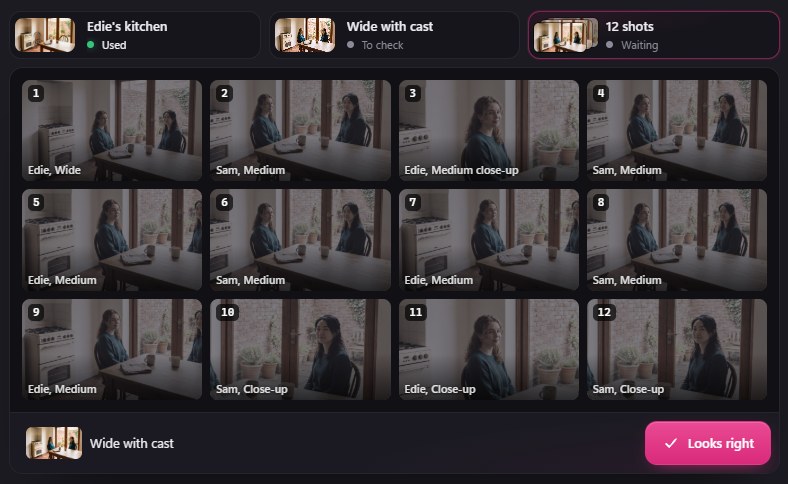
The last step shows the place's shots as small numbered pictures, each with who it is on and how close. They are dimmed until their wide is approved, and Looks right is under them too. Click a shot to close the set and open that shot.
Once the wide is approved, each shot is made from it:
- A shot the wide already shows well is cut from the wide itself, at no cost.
- Where a face is too small or turned away, the camera turns towards it from the wide.
- A face seen side-on or from behind, or one the camera would have to go too far round to see, gets a single: just that person, in their place, facing the camera.
Camera moves and singles are new pictures, made on fal and priced before they are made. Scenery a shot shows for the first time, such as the view through a window, is kept for that place: later shots looking the same way use it, in every episode set there. The same camera asked for twice gives back the same picture, and nothing is paid for twice.
Redraw a prop
Every prop card has Redraw, with its price: the prop is drawn fresh from its words. Change it keeps what is in the picture and changes only what you ask (see Change one picture). A prop that needs drawing again says Needs redraw as soon as the story opens, and the Props tab's draw button includes it. Several props drawn with one press are drawn together, each paid for once; if one fails, the others are still kept.
Shot cards (coming in the next desktop build)
Camera on replaces Who is in it: choose who the camera is on, and BosOn works out who else is in frame from the wide. What someone is holding is written in the shot's Detail, with @ names, for example "@Sam is holding the @letter". Edit the Detail to change what they hold. The Holding line and its buttons are gone. A shot's picture is drawn with only what its Detail and the rule for props say is in a hand: something a person put down is no longer drawn because an earlier note mentioned it.
When BosOn breaks a script down, no two shots in a row in the same place are the same picture: each cut changes how close the shot is or who it is on. If you set two shots in a row to the same framing yourself (two two-shots of the same people, say), their clips play as one take: the second clip starts on the last frame of the first, so there is no jump. Make the first clip before the second for this to apply. A shot's picture also shows how its line is played (angry, shouting, and who it is said to), whatever its Detail says.
While its wide waits for Looks right, a shot says Waiting and can't be drawn yet. Once it can, its Start frame has a Redraw note. Say what to change, such as "closer on his face" or "from behind her shoulder", then choose Redraw. BosOn turns the note into a tighter or wider cut of the same picture, or a new camera position, and shows the price before anything is drawn. The note stays with that shot. If a camera move doesn't work, the card says why and offers Redraw and Take a crop.
Open Who plays whom to assign your character pictures. If nobody plays a speaker yet, choose Make a new character in their row: Character Studio opens with their name and look filled in. Keep that name, because the story finds the new character by it. Get it all ready prepares the missing set pieces, including required outfits and props, and shows its price straight away (see Get ready, in order). Needs redraw marks a picture whose inputs have changed; its old media remains available. Draw the wides draws the missing wides with the cast.
An older story (coming in the next desktop build)
If a story's script changed after it was broken down, Get ready and The set say "The script changed after it was broken down. Break it down again to draw from it.", with Break it down again, as soon as the story opens.
An older story opens to look at as it was made, until you break it down again. Its set shows only its pictures and one line with Break it down again: no Draw the wide, Redraw, Looks right or Change it, and its words can be read but not edited.
If the story has a finished video that isn't in your Library, Break it down again first asks "This removes the finished video. Save it to the Library first?"
- Yes adds the video to your Library as it is, named after the episode with "(earlier version)", then breaks the story down.
- No breaks it down without saving the video.
- Closing the box stops, and nothing changes.
Change one picture
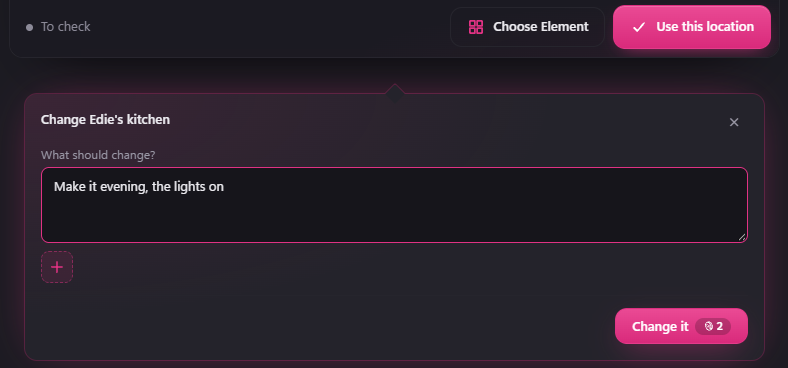
Choose Change it on a place, one of its empty views, a prop or an outfit. A wide with the cast changes with Redraw and its note instead (see Check each wide with the cast), and a shot with its Redraw note (see Shot cards).
Under What should change?, say what to change, such as "Make it evening, the lights on". Type @, or press +, to name one of the story's characters or props: each shows as a small picture under your words, with × to take it out. A place used in more than one episode asks where the change goes: This episode, or all of them.
Change it shows its price, and pressing it is your yes; if the price has changed since, BosOn asks first. BosOn reads your words and draws one new picture, with the current one shown as Before while After is drawn. If it can't be changed, After says why under Not changed, and your words stay so you can change them and press again.
If fal is out of credit, or turns the change down, BosOn says so plainly, for example "fal is out of credit, so nothing was changed or charged", with Top up beside Change it. Nothing is held: top up, then press Change it again.
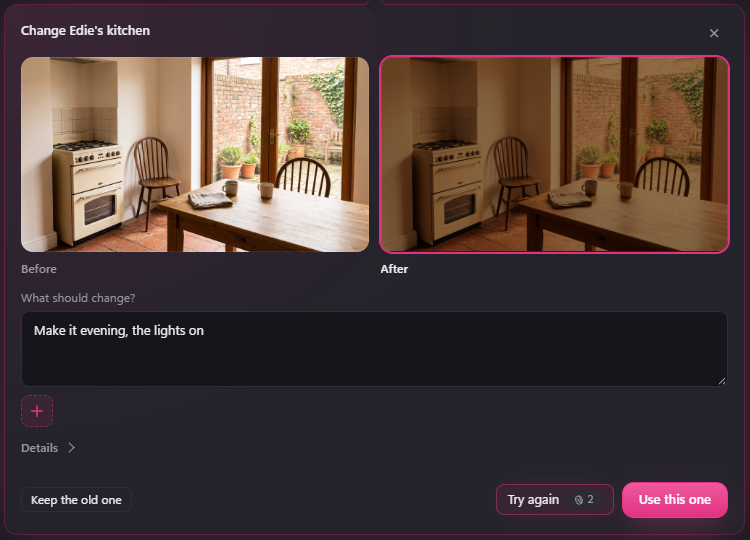
Compare Before and After, then choose:
- Use this one replaces the picture and buys nothing else. A new picture of the place itself clears its empty views, since they were drawn from the old one.
- Try again draws another After, at the price shown.
- Keep the old one leaves the picture as it was.
If you close the box first, the Before and After are still there when you choose Change it again. Details shows what BosOn read from your words, such as the place after the change, and how the picture was drawn. A detail you change by hand stands, and wins if it disagrees with your words. For an outfit, a line shows the outfit the script asks for in that setup when your change differs from it.
A change for all episodes asks once more before it's used. Each episode keeps its own people, positions, time of day and clothes.
Only a change whose outcome BosOn can't be sure of is held. If BosOn lost track of a picture being drawn, Collect edit fetches it without paying again. If it stopped before it was sent, Cancel unsubmitted edit releases it. If BosOn can't tell whether your service took the job, Release local hold lets other work carry on and keeps any possible charge on record; check with the service, then choose I checked: no provider job. None of these buys another picture, and a held picture can't be changed again until you've checked.
When BosOn has new words for a shot, a note says how many shots have them. Look at them shows Now and New side by side, with Use the new words or Keep mine; Keep all keeps yours for every shot.
For an arrival, a departure or a new arrangement, choose New setup from this shot on that shot. The set opens on its wide with the positions to edit, starting from that shot. A new setup is in the same place, so it doesn't use another one.
These pictures come from a demonstration workspace with invented people. The After is a stand-in, not a real result.
Outfits at each location
The Outfits tab groups clothes by scene/setup when a story has several arrangements in the same room. An unchanged outfit reuses its reference. A scripted wardrobe change belongs to its source action and later setup, so a later coat does not appear in the opening.
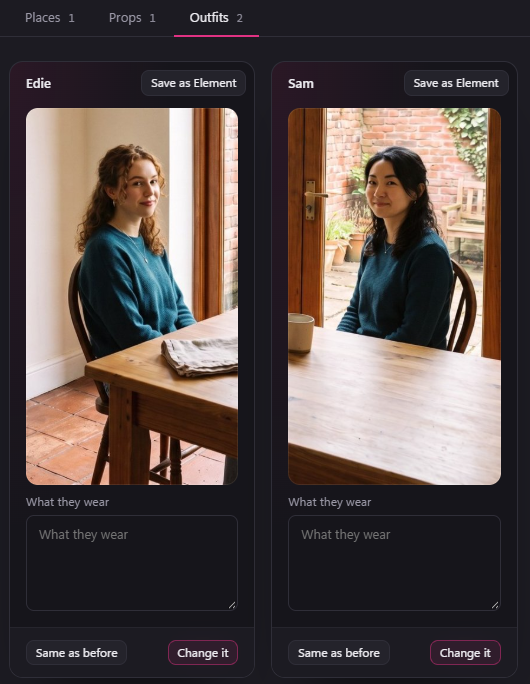
Each person has a card with their outfit picture and What they wear. To change the outfit:
- Change it changes the picture from your words, as in Change one picture.
- The upload button on the picture uses a picture of your own.
- Choose an outfit picks an outfit from your Elements. It shows once your workspace has outfit Elements.
- Use their sheet's outfit dresses them as their character sheet shows them, when they have one.
Uploading or choosing an outfit buys nothing. An outfit you choose this way is used for that person in every setup in the place, and stays when the script is broken down again. Same as before goes back to the outfit they had before. A card marked As in another setup uses that setup's outfit.
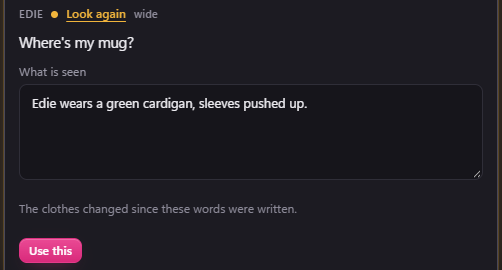
Changing an outfit never rewrites a shot's words. Instead, that person's shots that have What is seen words say Look again on their cards. Click it to see the words with "The clothes changed since these words were written.", edit them, then choose Use this. When BosOn has new words ready, it shows the old and the new instead, with Use the new words or Keep mine. Keep them all as written answers every Look again at once. A shot you leave marked is drawn with the words it has.
An unrelated script edit keeps your corrected positions and matched shot-card choices. A change to their supporting passage asks you to review the conflict. Instructions and outfit selections stay attached to their scene/setup when an earlier setup is inserted.
A required new outfit must be resolved before its wide can be purchased. Accepting it preserves the opening outfit and all existing media. If a later script revision changes the requirement again, the old paid outfit remains available while its new assignment is reviewed.
Watch a narrated explainer, then make it
Once its pictures are drawn, Watch the pictures plays the whole story with its lines read, free: nothing is made or paid for. When clips are made, Play plays them. Making it draws each scene, voices it, scores it and puts it together. The video ends about two seconds after the last word, with the music coming up and then fading out. Clips made on a model with its own sound keep their sound effects under the narration: with fal connected, BosOn takes any voice out of a clip's sound and keeps the rest; without fal, the clip's own sound is left out. If a track is switched off in the timeline, Micro Studio says so on the finished video and can switch it back on. Paid by says which of your connected services pays for the pictures, clips and music, your Primary or Secondary from Who pays. Once anything is made, the explainer keeps that account, so a finished video stays finished when your connections change.
In the next desktop build, the voice you choose in Setup also selects who reads the narration. Choose a voice from your ElevenLabs account or its Voice Library to use your ElevenLabs characters. Choose a voice under ElevenLabs on fal to pay for the read on fal. Making it shows the service and price beside The voice.
If the Higgsfield plan declines a narration request, you can correct the line and make it again. If its reply was lost, Collect checks for the original read. After five minutes, Try again in the explainer lets you request another read. The plan may charge for both if it accepted the first one.
If a service runs out of credit part-way, Micro Studio stops and offers to carry on with your other one. You can make several explainers at the same time.
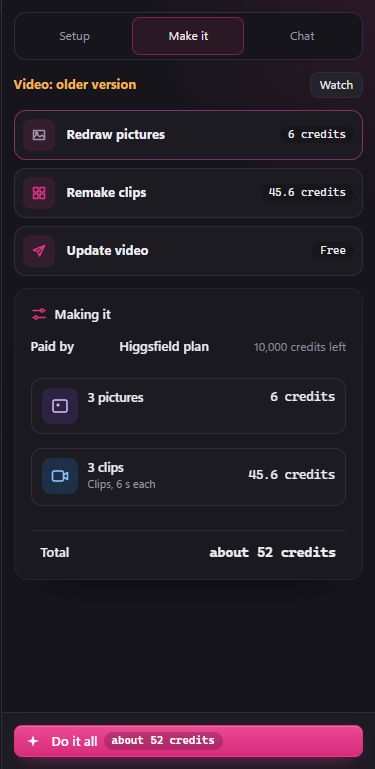
In the next desktop build, Make it shows the work left, its payer and total. Do it all stays at the bottom of the sidebar. If a step stops, Carry on resumes that step.
When the status line says Video: ready, Watch plays the finished film in the centre. Open All made to see the completed steps. Add to library, Export and Post stay at the bottom. Choose Full quality to save the original file for editing elsewhere.
After a change, Video: older version means you can still watch the previous film. Check which steps need making again and their prices before choosing Do it all.
Post it (coming in the next desktop build)
Once you've connected somewhere to post, a finished explainer has Post at the bottom of Make it. A finished micro drama or short film has Post in its Save it card. It opens the same Post box as the library, so you choose where it goes and what it says there. If it isn't in your library yet, it goes in first, so the post shows in Results with its numbers. Posting it again uses the same library item.
If the video is under 1080p, pressing Post asks whether to upscale it first. See Upscale first?.
A thumbnail that makes people tap
Once the video is made, its Thumbnail card sits beside it. Click Make one, then give it a title: type your own, or click Suggest titles for three that make people curious, and tap one to use it. Put stars round a word to show it in yellow.
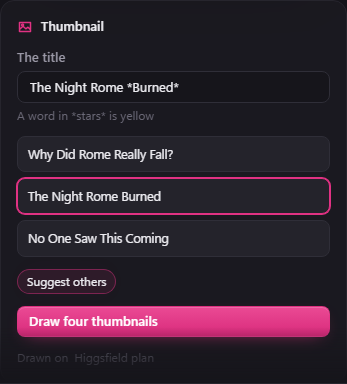
Draw four thumbnails draws four, each a different scene and shot with your title drawn in, in 1 to 3 minutes; carry on with something else while they're drawn. What they cost, and which service draws them, shows under the button. Tap the one you like and click Use this one: it's kept with the video and goes in your library with it. Draw four new thumbnails tries again, and Change on the card picks another later.
What it runs on
Pictures and clips can be made on your Higgsfield plan, fal, Kie.ai or OpenRouter; voices and music on whichever of your services makes them, ElevenLabs included. See Connecting your services.