

Making a character
Describe a character or start from your own pictures, choose their look, then give them a voice and a bio. The same character appears in every picture, clip, explainer and ad.
Character Studio makes a character once, so the same face turns up in everything you make with them. Each character is kept as an element: type @ and their name in any words box in BosOn, and the AI works from their pictures, whether you're making a picture, a clip, an explainer or an ad. See Elements: characters, places and things for how elements work across BosOn.
Open Character Studio from Create. It shows Your characters, with New character first.
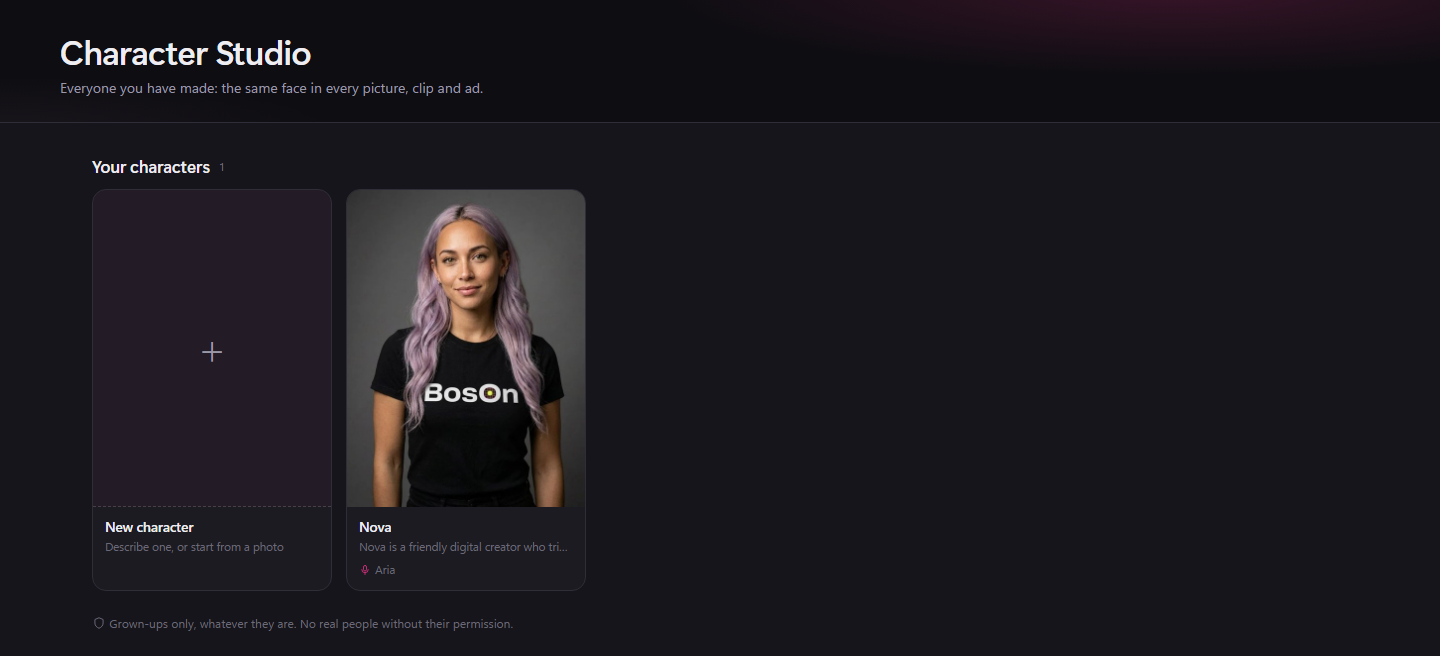
Characters are always grown up, whatever they are: BosOn never makes a child. Well-known people, and anyone without their permission, are refused.
If Character Studio isn't on Create, open Settings, Plugins: it lists the studios your plan includes.
Make a character from words
Name them
Click New character and keep Start from on Describe them. Give them a Name: one word, so it works as @Name in every tool. Choose How far from real?: Natural could pass for a real one, Bold is clearly made up but still believable, and Extreme means anything goes.
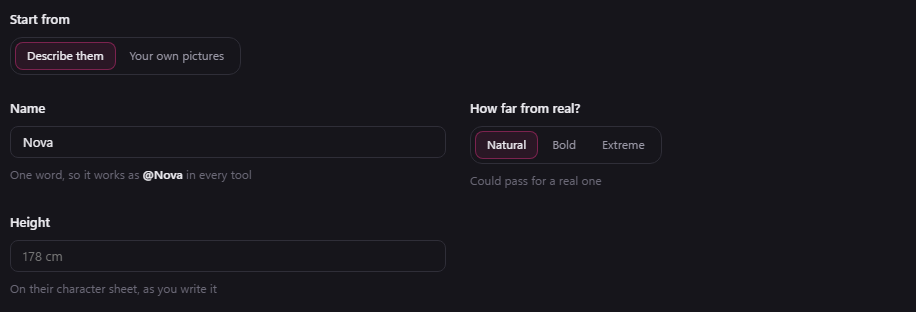
Describe them
Choose What is it?: Person, Animal, Alien, Robot, Fantasy or Your own idea. Then Describe your character in a few words. Surprise me fills in a ready-made idea, and Fill in the traits sets the traits from your words.
For a person, you can also Add a photo of the face: BosOn keeps that face and builds the rest from your words. Turn on This is my face, or I have the person's written permission to use it to go on.
Choose the traits
Under The traits, change any you like in Who, Looks and Style. The ones left on Let BosOn choose are chosen for you, and your choice wins over the words. Click Make 4 looks. BosOn uses the first connected account in Who pays in Settings that can make the looks. It follows the same order for the character sheet. If a service turns down an authorised likeness, BosOn can try your Secondary. The button shows plan credits when the price is known.
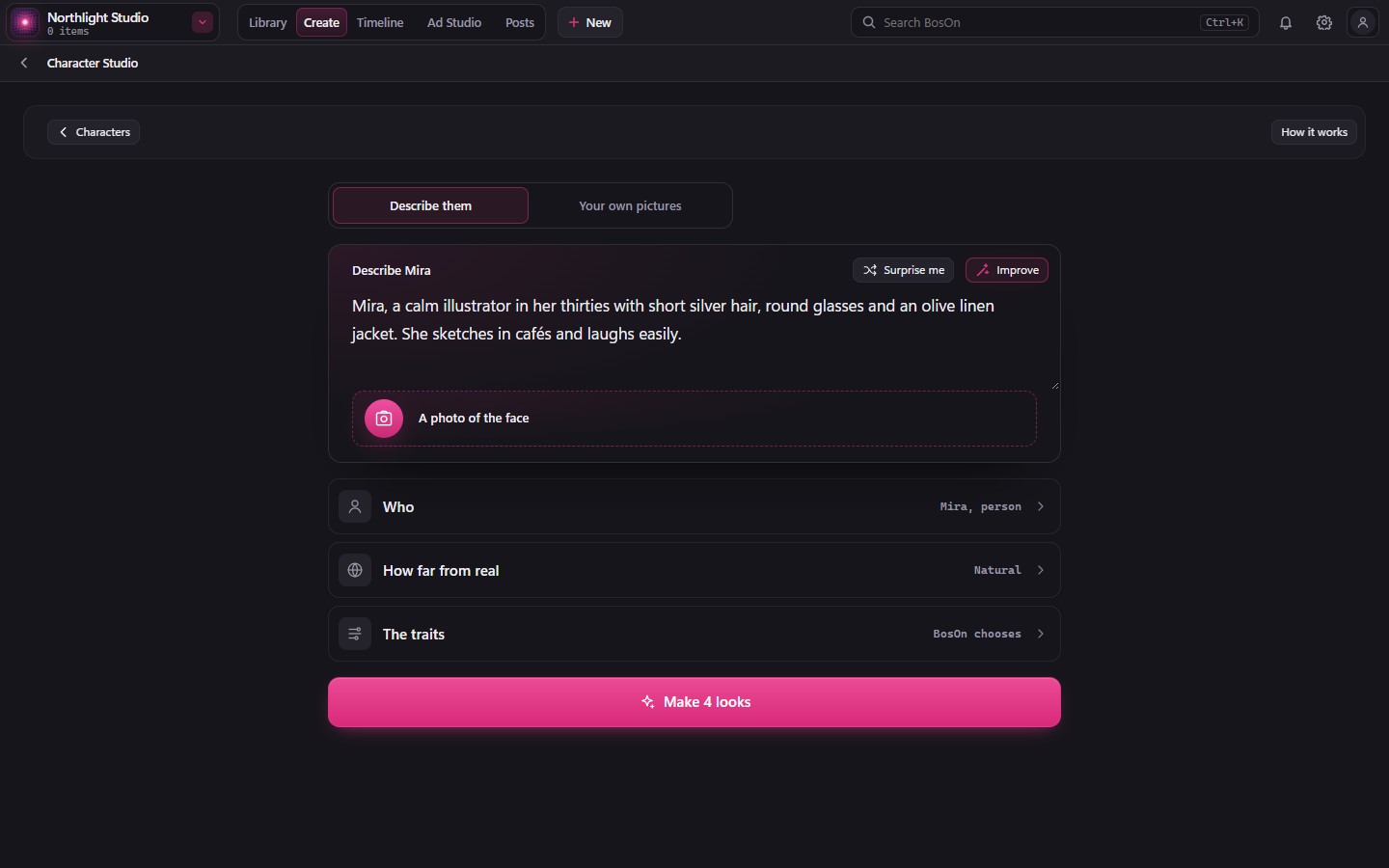
Choose a look
The four looks arrive one at a time. Click the one that is them, then Keep with their name, such as Keep Nova. Make 4 more gives you another four, and Change the traits takes you back.
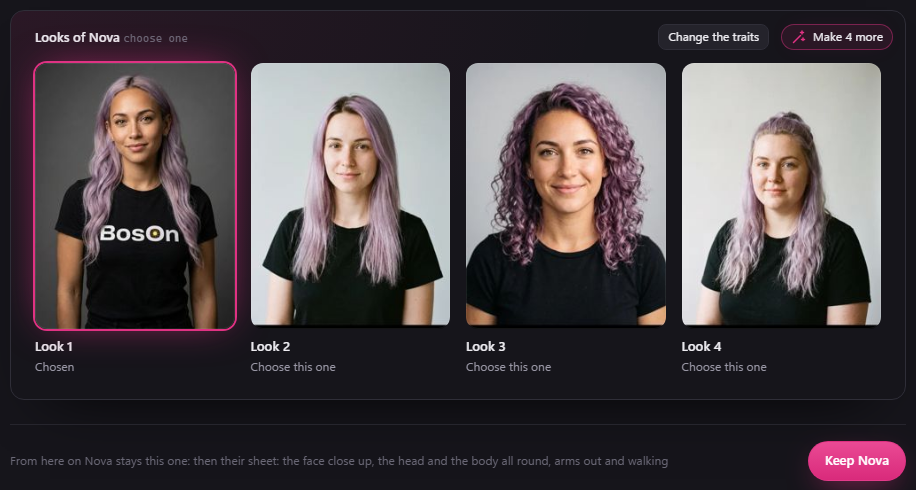
From then on they stay that one. BosOn makes their character sheet from the look you kept.
Or start from your own pictures
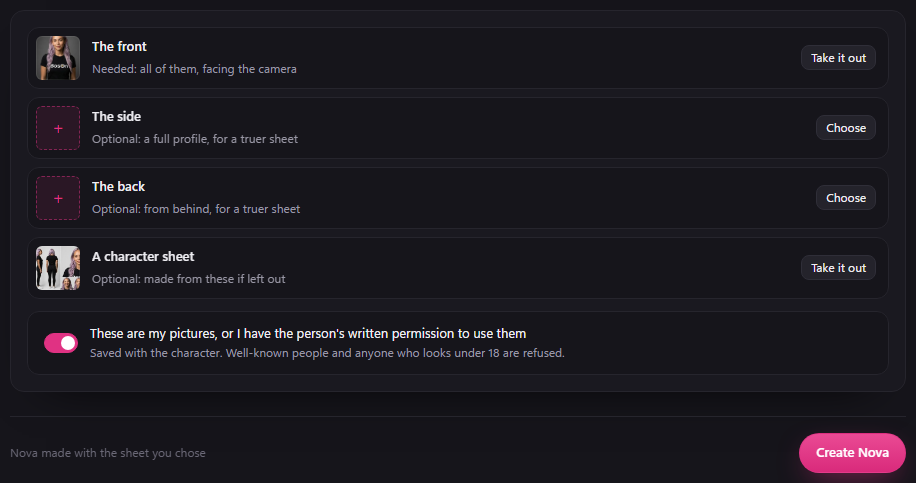
Under Start from, choose Your own pictures. Add The front, with all of them facing the camera, and The side, The back and A character sheet if you have them. Turn on These are my pictures, or I have the person's written permission to use them, then click Create with their name.
With a character sheet of your own, nothing new is made. Without one, BosOn makes their sheet from your pictures.
Their character sheet
The sheet shows their face close up, the head and the body all round, arms out and walking. It goes with every job, so the same character turns up each time. Fix something changes what you describe, such as their hair, and leaves the rest as it is. New sheet makes it again from the pictures you choose.
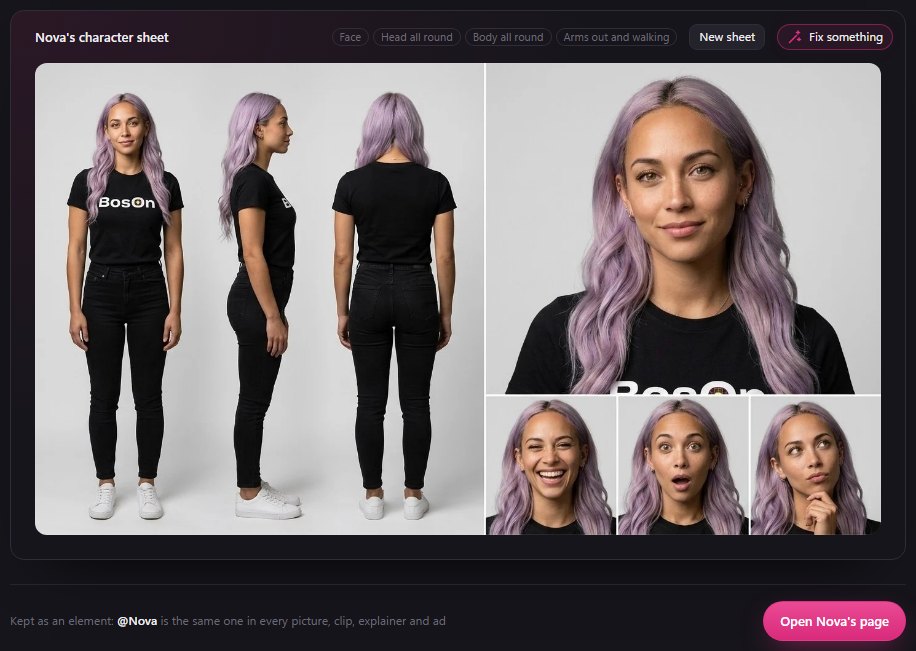
Then click Open Nova's page (with your character's name) to carry on.
Their page: voice and bio
Each character has a page of their own. Its cards carry your character's name, such as Who Nova is.
- Voice: Choose a voice from every voice you've connected, or make one. It's used whenever they talk, and BosOn makes Their voice sample, which goes with them to video that speaks. Describe their voice makes a voice from words.
- Who Nova is: a short bio. Captions and scripts are written from it, and Write it drafts one for you.
- How Nova talks: choose a tone, such as Warm, Upbeat or Playful.
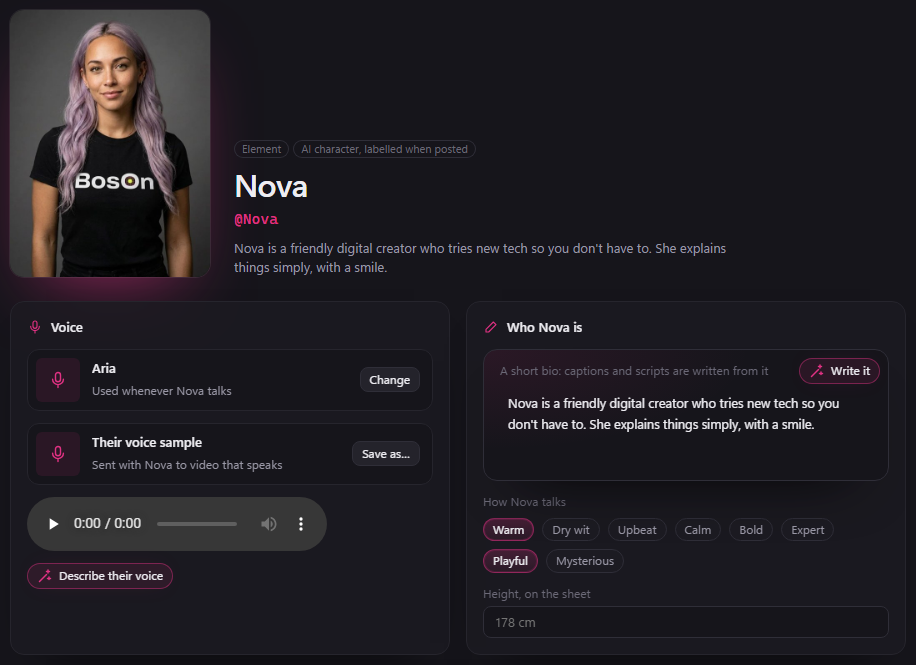
Their page says AI character, labelled when posted.
Bring them to life
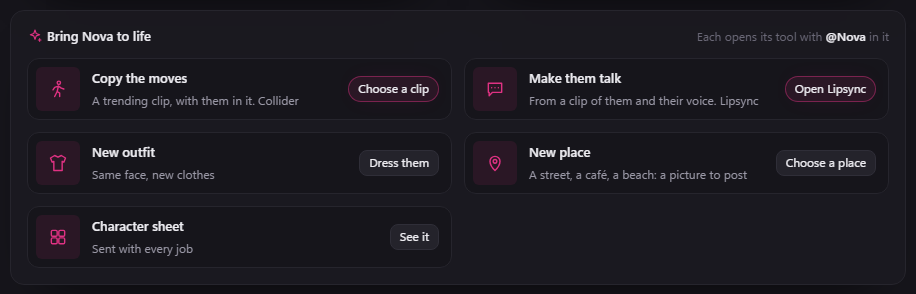
Bring Nova to life, at the bottom of their page, opens each tool with @Nova (your character's name) already in it.
- Copy the moves: a trending clip with them in it, in Collider. Click Choose a clip.
- Make them talk: their picture says your words in their voice. When nothing connected can make talking video, Open Lipsync makes it from a clip of them and their voice.
- UGC video: them holding your product and telling the camera about it. It shows when something connected can make talking video. Click Make one. The picture and talking video each use the studio model for the account that pays. The voice uses the service you chose with it.
- New outfit: the same face in new clothes. Click Dress them.
- New place: a street, a café or a beach, as a picture to post. Click Choose a place.
- Character sheet: click See it.
What they make goes into your library. Making pictures, voices or video uses your connected service's normal allowance or credit.